> ## Documentation Index
> Fetch the complete documentation index at: https://juo.io/docs/llms.txt
> Use this file to discover all available pages before exploring further.
# Subscription widget
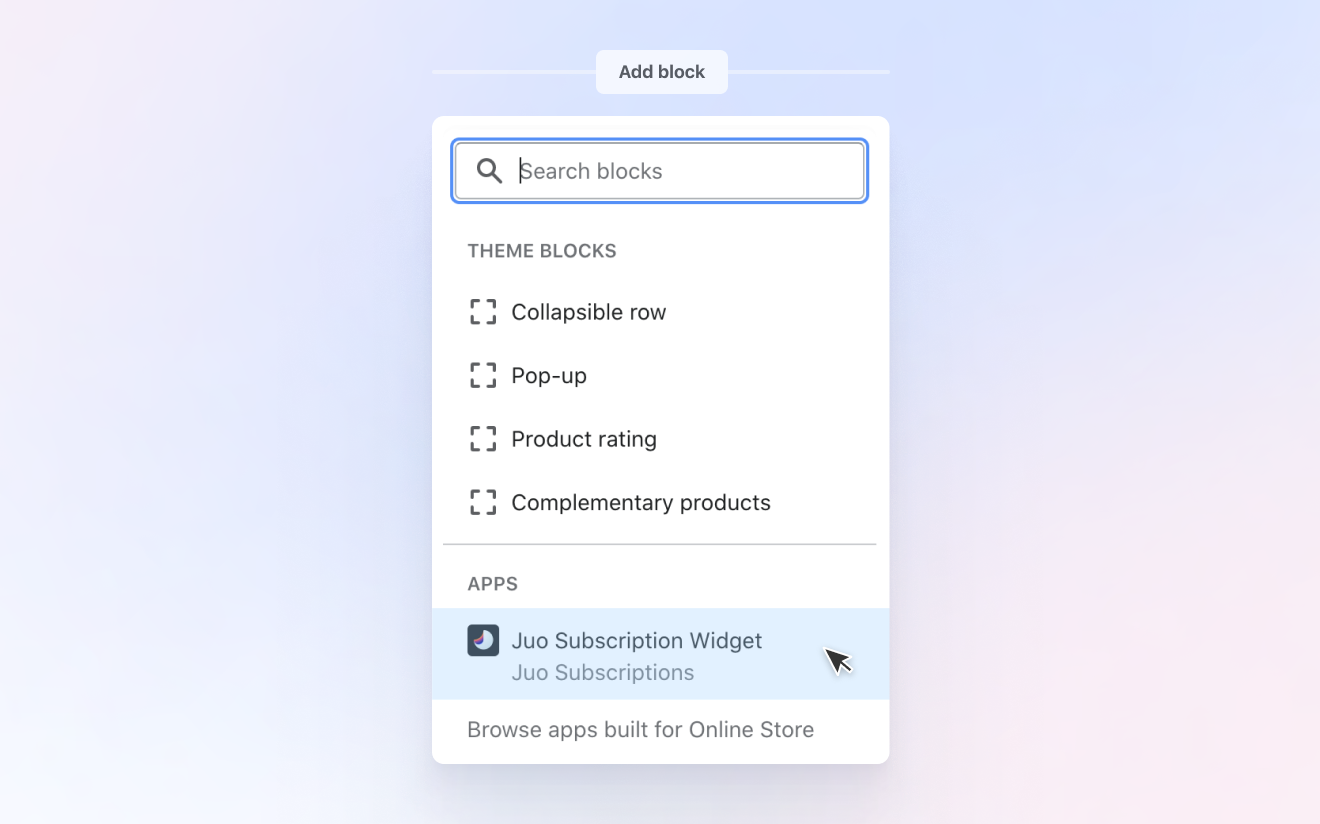
Adding the Juo Subscription widget to your store’s theme is a quick way to enable recurring purchases for your customers. Once you add the widget to your current theme, it will show up on your product pages and your customers will be able to choose between subscription and one-time purchases and buy your products in subscription.
## Customize the theme
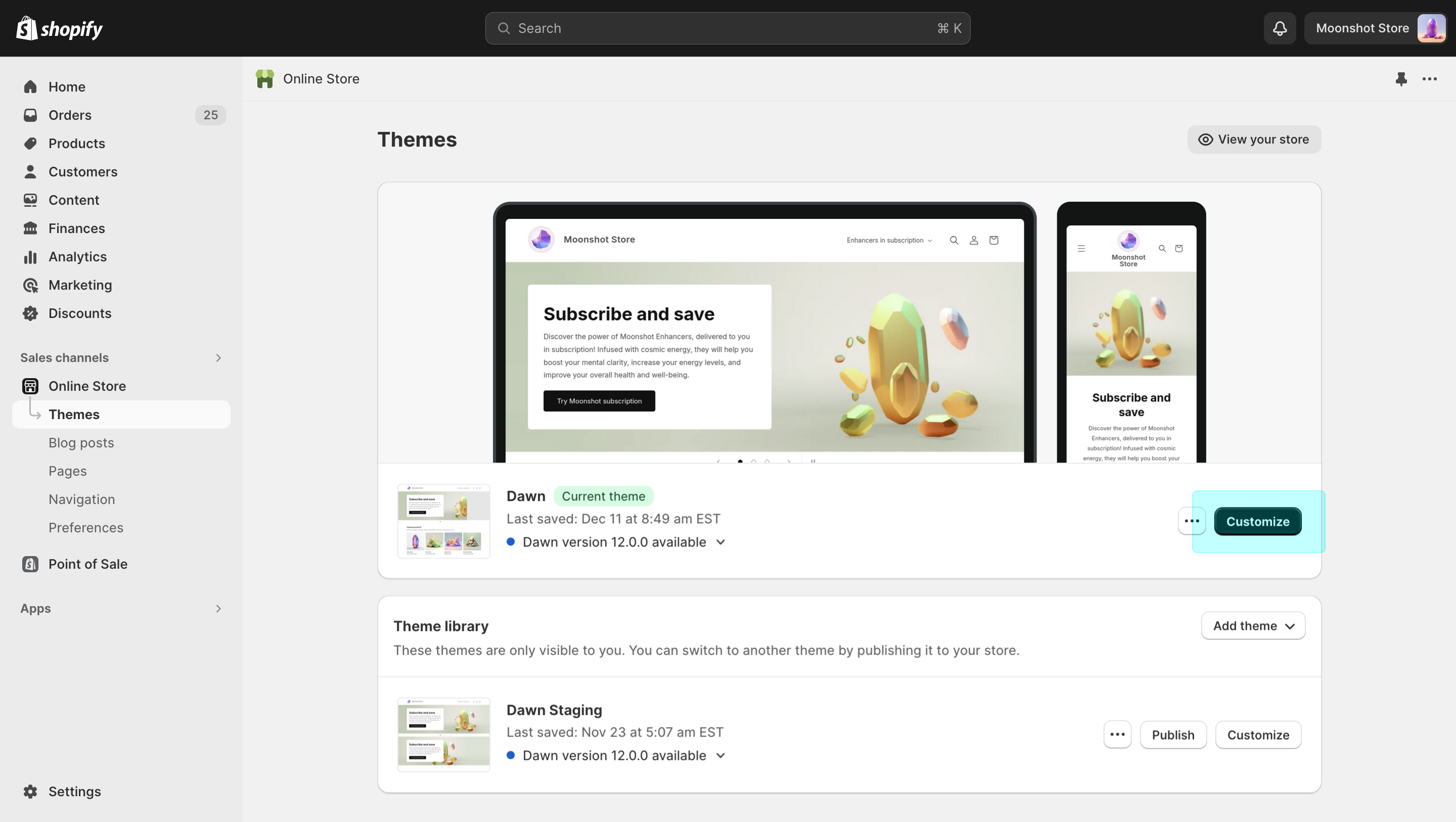
In order to enable the Subscription widget, you’ll need to adjust the current theme of your store. To do so, go to **Online store** in Shopify admin, select **Themes** in the left menu and find your active theme. Click **Customize** to start editing
## Choose the pages to add the widget
To let your customers select between one-time and subscription purchase on the product pages, you need to add the widget to the Product page template. First, choose **Products** and then **Default Product** from the **Templates** dropdown.
## Add the widget to product pages
On your product page template, choose where you want the widget to appear. It’s best to place it immediately above your “Add to cart” or “Buy” button. Click on the “Add block” button and select “Juo Subscription Widget” from the dropdown that appears. Hit Save to approve the changes.
## Customize the Juo widget
The default look and feel of the widget can be further adjusted to match your current product page design. You can read more about the possible customizations [here](/docs/customizing-juo-subscription-widget).
## Add the widget to non-product pages
You can add the subscription to other widgets (e.g. homepage). To do this, you need to use one of available product sections like Featured Product. Pick a product and add Juo Subscription Widget to this section. The widget will automatically pull the appropriate product from this section. This can work differently depending on your theme.