> ## Documentation Index
> Fetch the complete documentation index at: https://juo.io/docs/llms.txt
> Use this file to discover all available pages before exploring further.
# Custom workflows
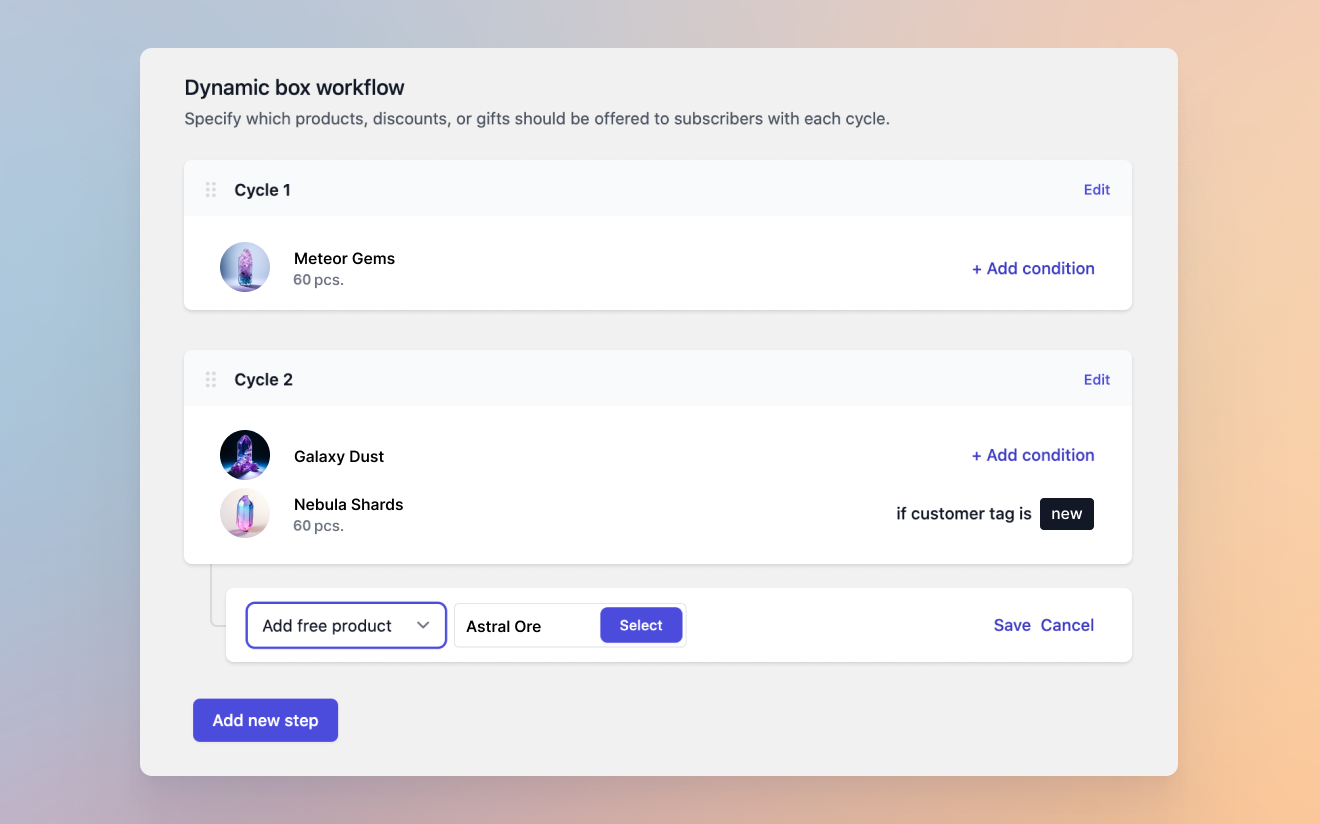
Custom workflows is a Juo-exclusive feature that helps merchants transition from generic, one-fits-all subscription offers to dynamic and contextual subscription workflows.
Using a subscription purchase as a trigger, you can use Custom workflows to craft unique SKU swapping sequences, build starter kit + replenishment offers, or add free products or extra discounts to subscriptions that match your criteria for increased loyalty and retention.
## Create a Custom workflow
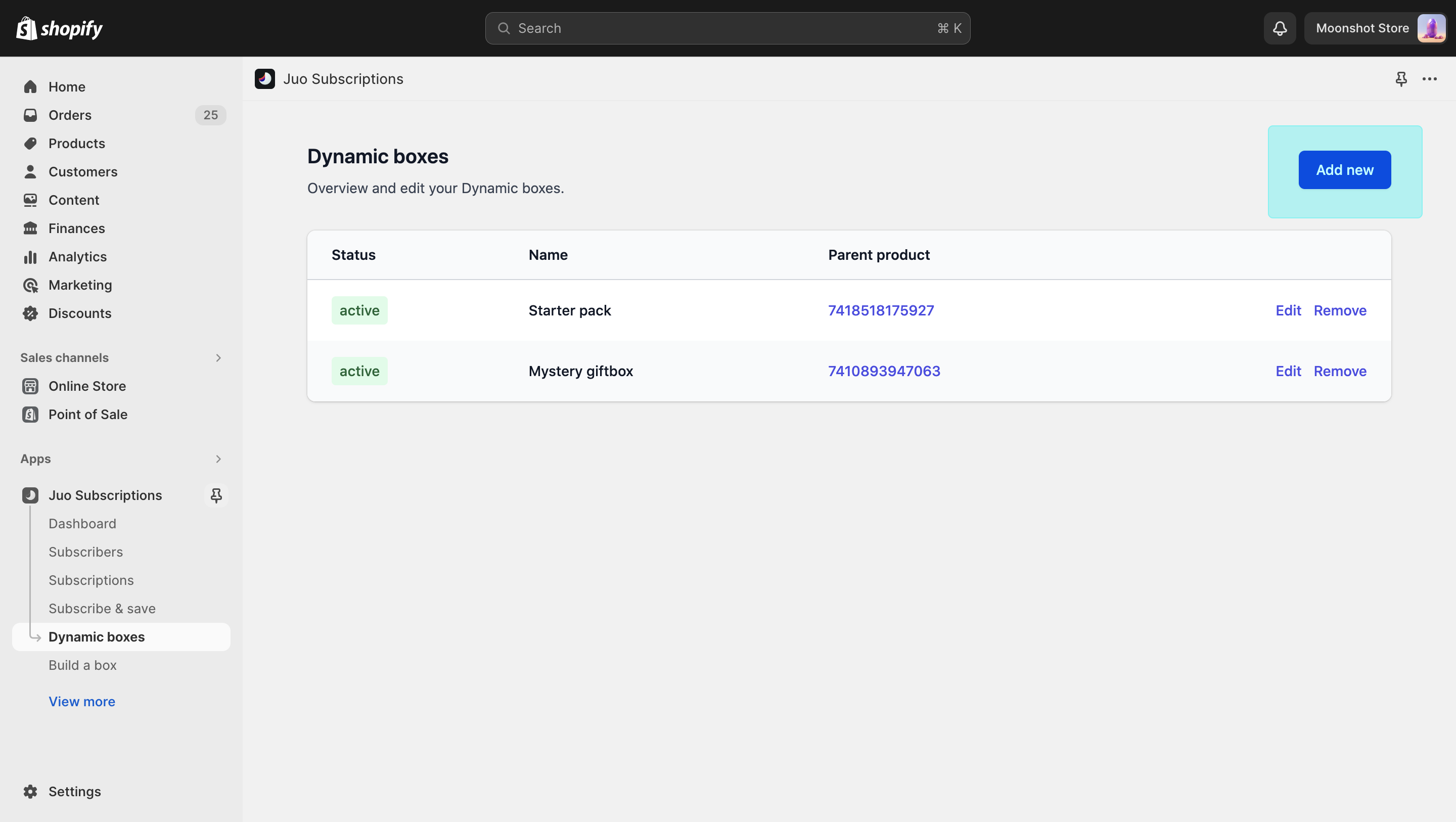
Custom workflows can be set up under **Offers** > **Custom workflows**.
To create a new workflow, click the “Add new” button on the **Custom workflows** view. Once created, your workflows can be managed from there.
## Add the Custom workflow details
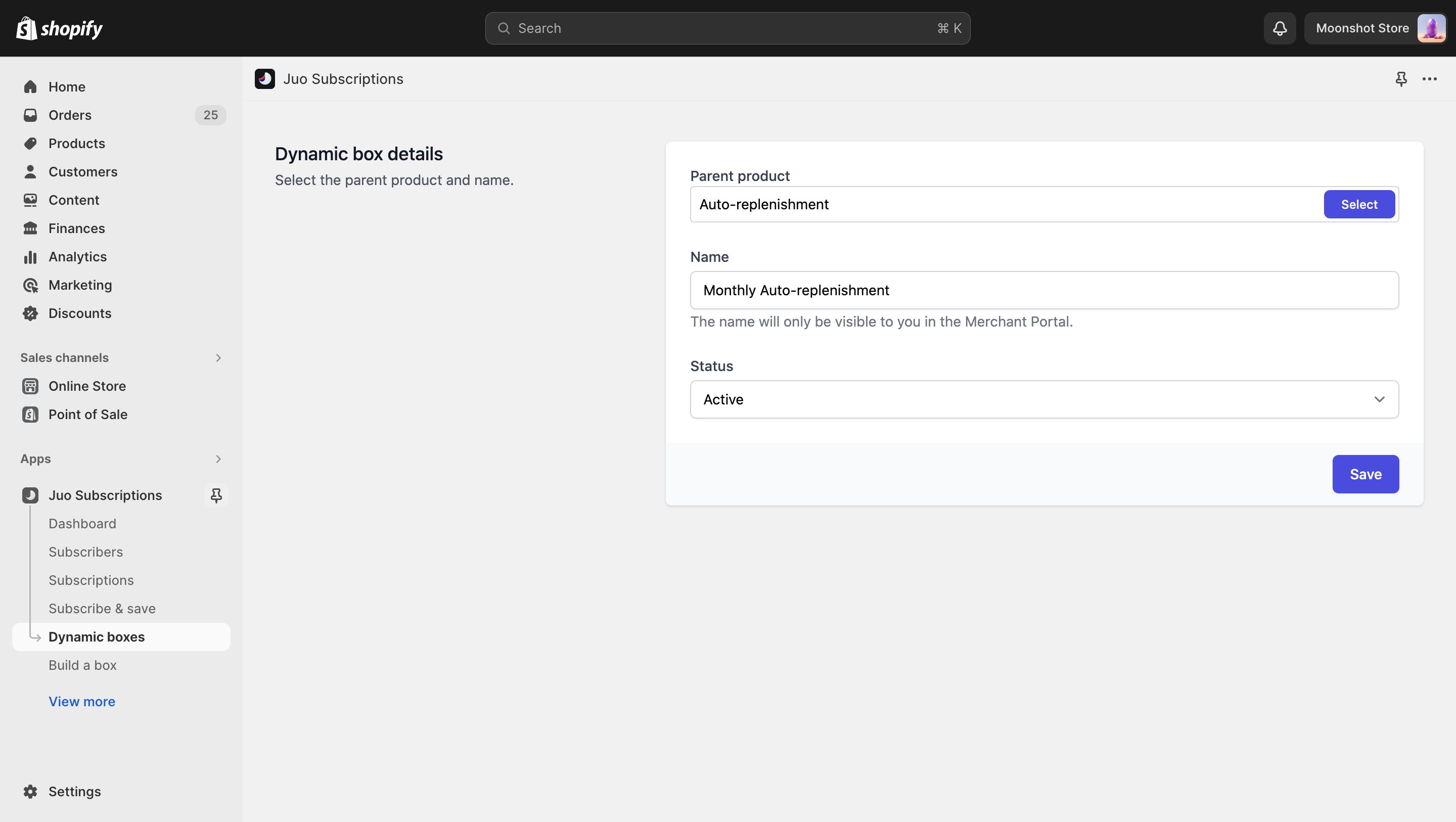
In order to offer Custom workflows, you need to choose the parent product first. The parent product in the Custom workflow works as an “umbrella” for all the items that your customers will be getting in their workflows. Buying the parent product initiates the Custom workflow sequence.
Next, you should name the workflow in a way that works for you. The name of the workflow can be the same as the name of the parent product or provide some additional details - it will only be visible to you.
Once you change the workflow's status to **Active**, it will become available to your customers. For now, you can leave it Inactive — just click the *Save* button to proceed with the workflow creation.
## Define the workflow
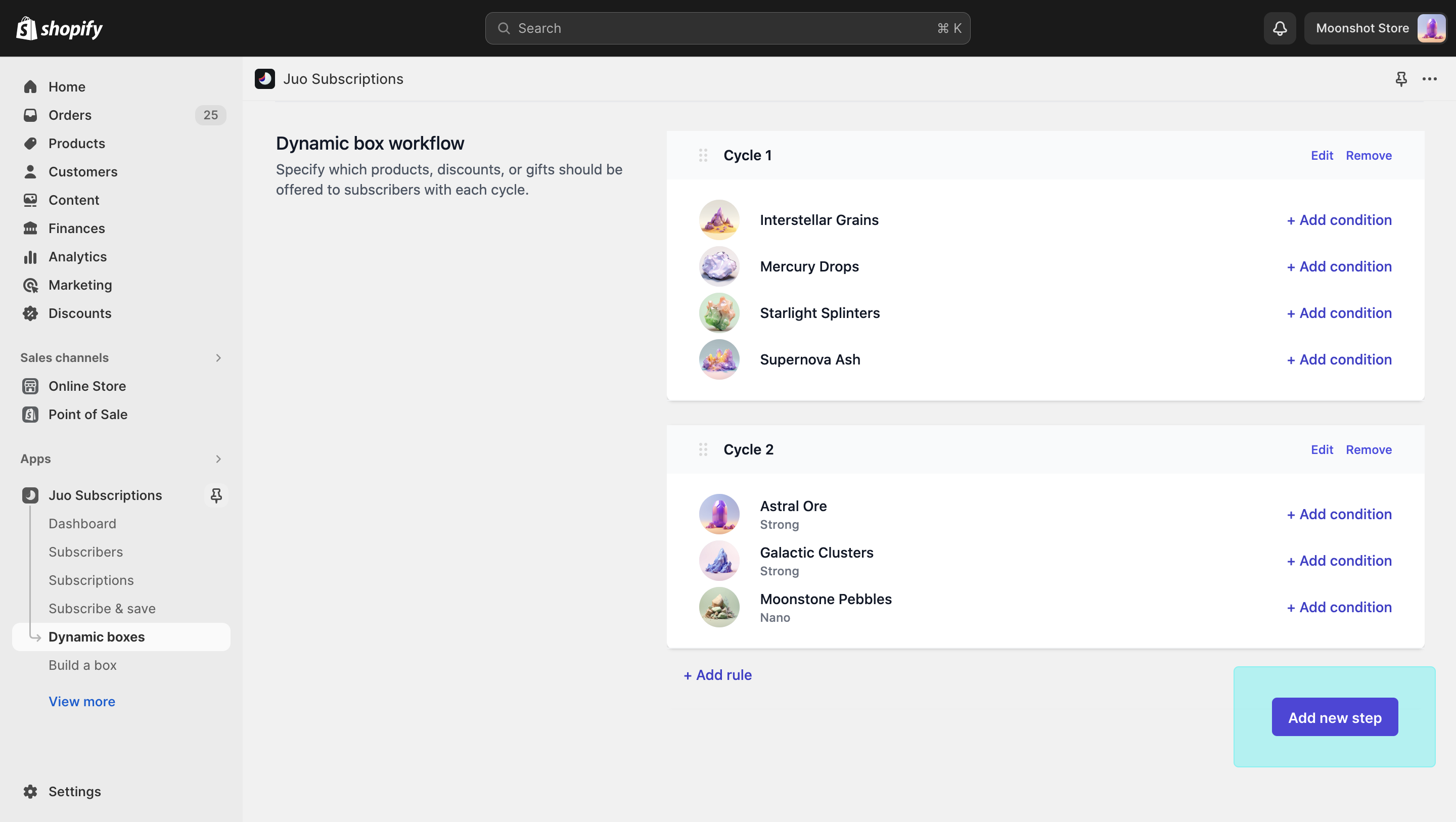
A workflow is a series of cycles arranged in a sequence. The first cycle contains the product or products your customers will get immediately after subscribing. The following cycles contain the products they should be getting next, cycle by cycle.
To define the first cycle, click on “Add new step” and select the right product or variant from the product list. You can add one or multiple products or variants, depending on how many products you want to send over each cycle.
Once the first step is defined, you can go ahead and define the following steps in the same manner.
## Add conditions
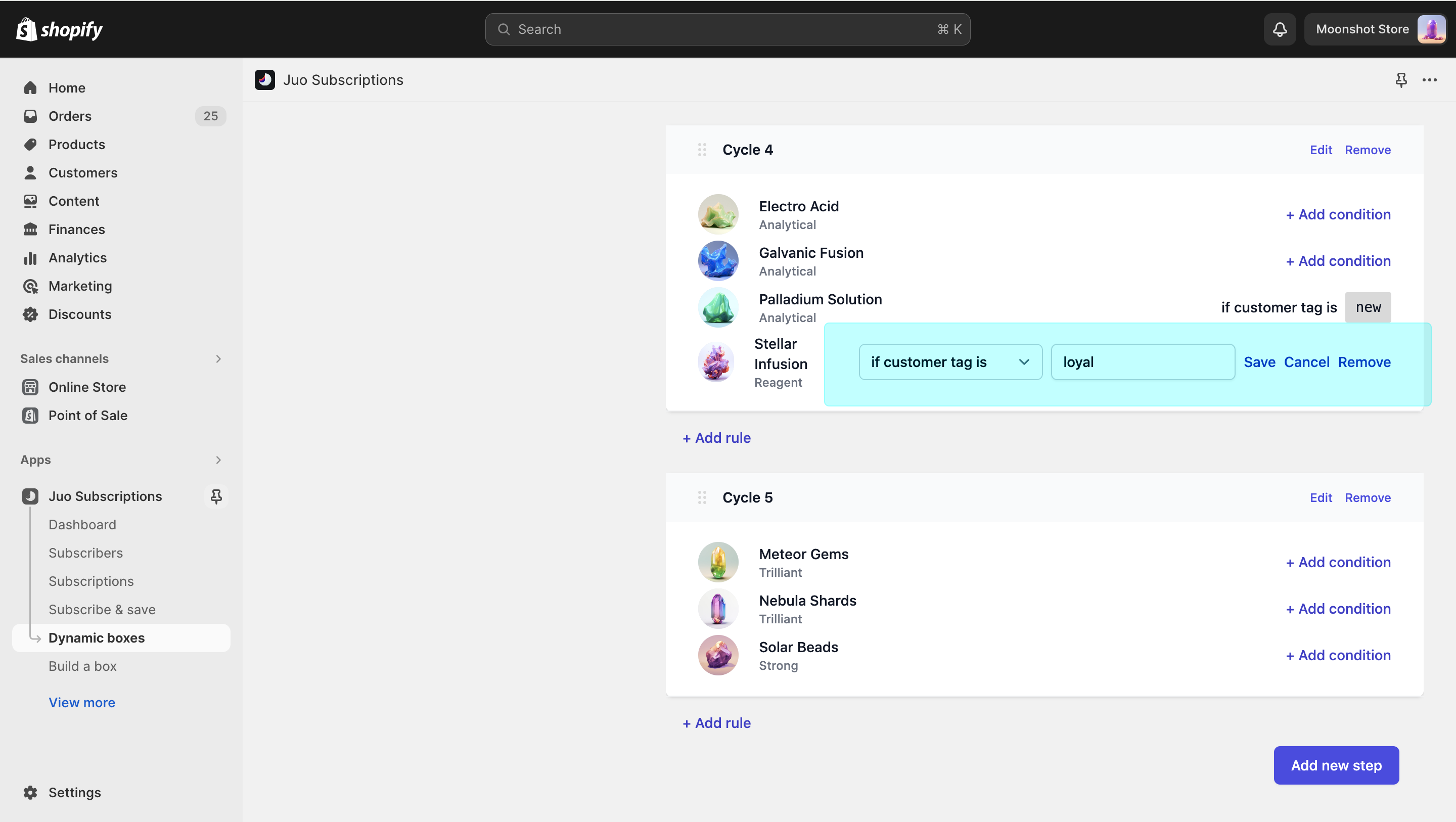
If you want to further customise which products will be sent when and to whom, you can use additional conditions to specify that. Conditions are set for each product or variant separately and can take these parameters:
* #### [Subscriber tag](#subscriber-tag)
If you’re tagging your subscribers based on their loyalty, or characteristics, you can use the tags to only send a product in a cycle to specific subscriber groups, e.g. only send an extra product to your first-time subscribers.
* #### [Month and month between](#month-and-month-between)
You can add or remove certain products into / from a cycle, depending on the time of the year. E.g. you can remove Vit D from your customers’ boxes in the summer months.
## Add rules
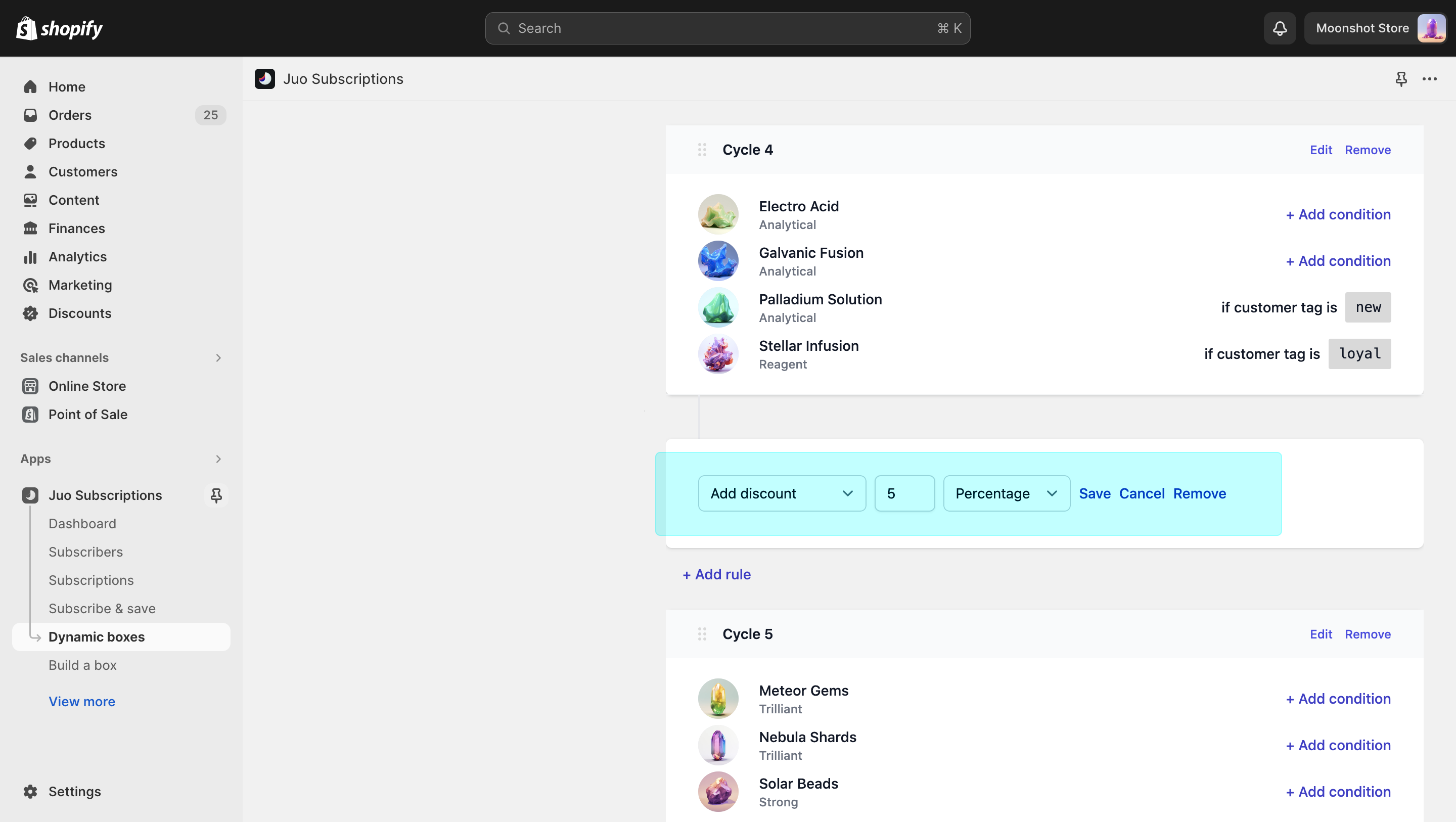
Juo lets you add additional incentives, such as free products or discounts to each of the cycles you define. To add the incentive, click on “Add rule” below the cycle you want to modify. Here’s what you can add:
* #### Add free products
You can choose and add any product from your inventory as a free gift added to your workflow.
* #### Add discount
You can add an additional discount after a number of cycles is completed. The discount can be flat or percentage.
* #### Add free shipping
You can add free shipping to a selected cycle as well.
* #### Change frequency
Change the subscription delivery frequency. Effective **after** the selected cycle.
* #### Send email
You can send an email along with the subscription renewal.
## Cycle settings
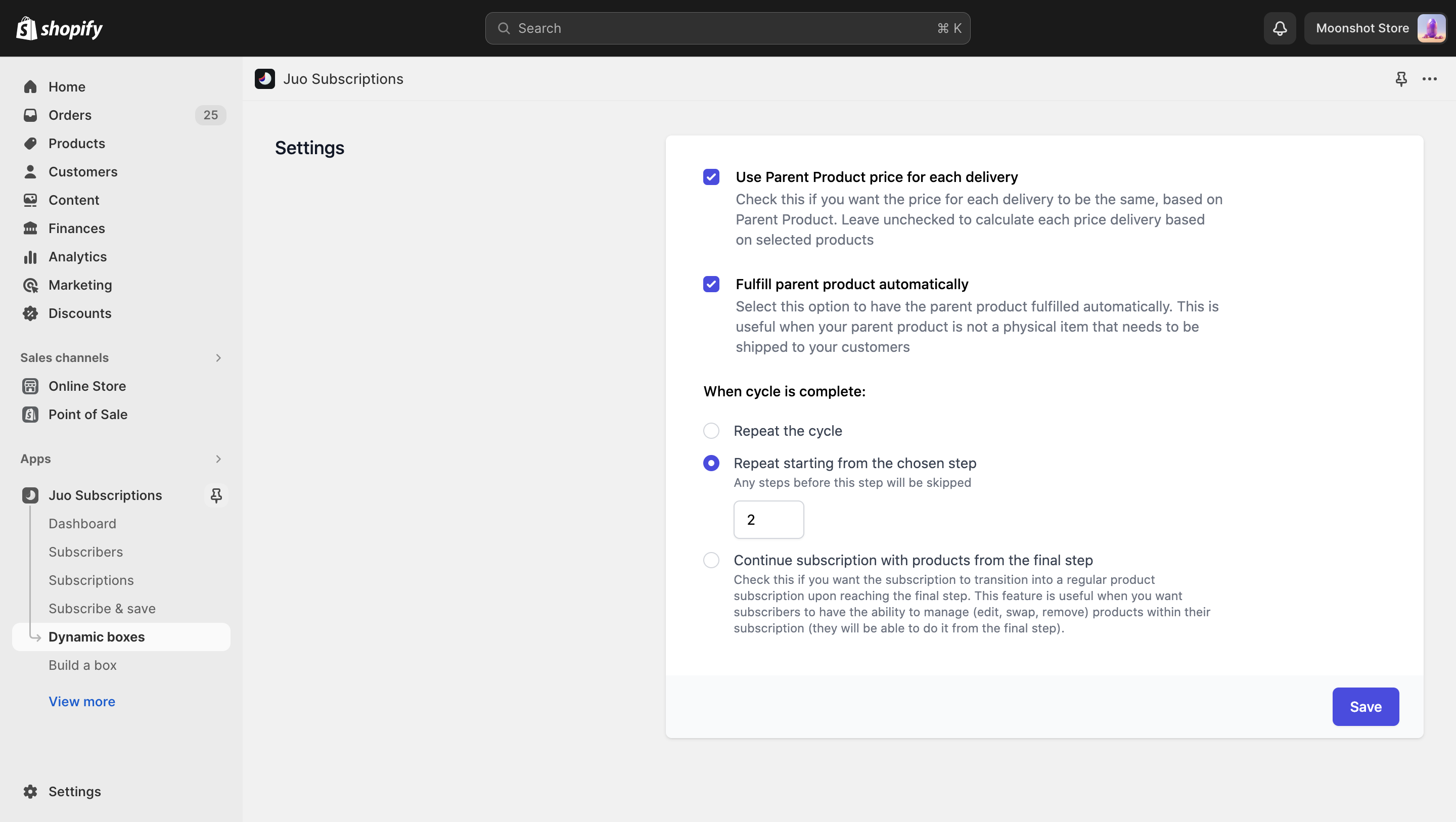
Once setting up the cycle, you can also apply the same (Parent product) price for all cycles or apply different prices, depending on the defined cycles.
You can also decide what should happen after the entire sequence is complete. You can either repeat the entire cycle from the beginning, or repeat the sequence starting from the cycle you select.