> ## Documentation Index
> Fetch the complete documentation index at: https://juo.io/docs/llms.txt
> Use this file to discover all available pages before exploring further.
# Using Customer Portal
## Logging in to the Customer Portal
The Customer Portal is a designed space where subscribers can manage their subscriptions.
In the Customer Portal, subscribers can overview their existing subscriptions, their statuses and scheduled renewals, and change their properties flexibly.
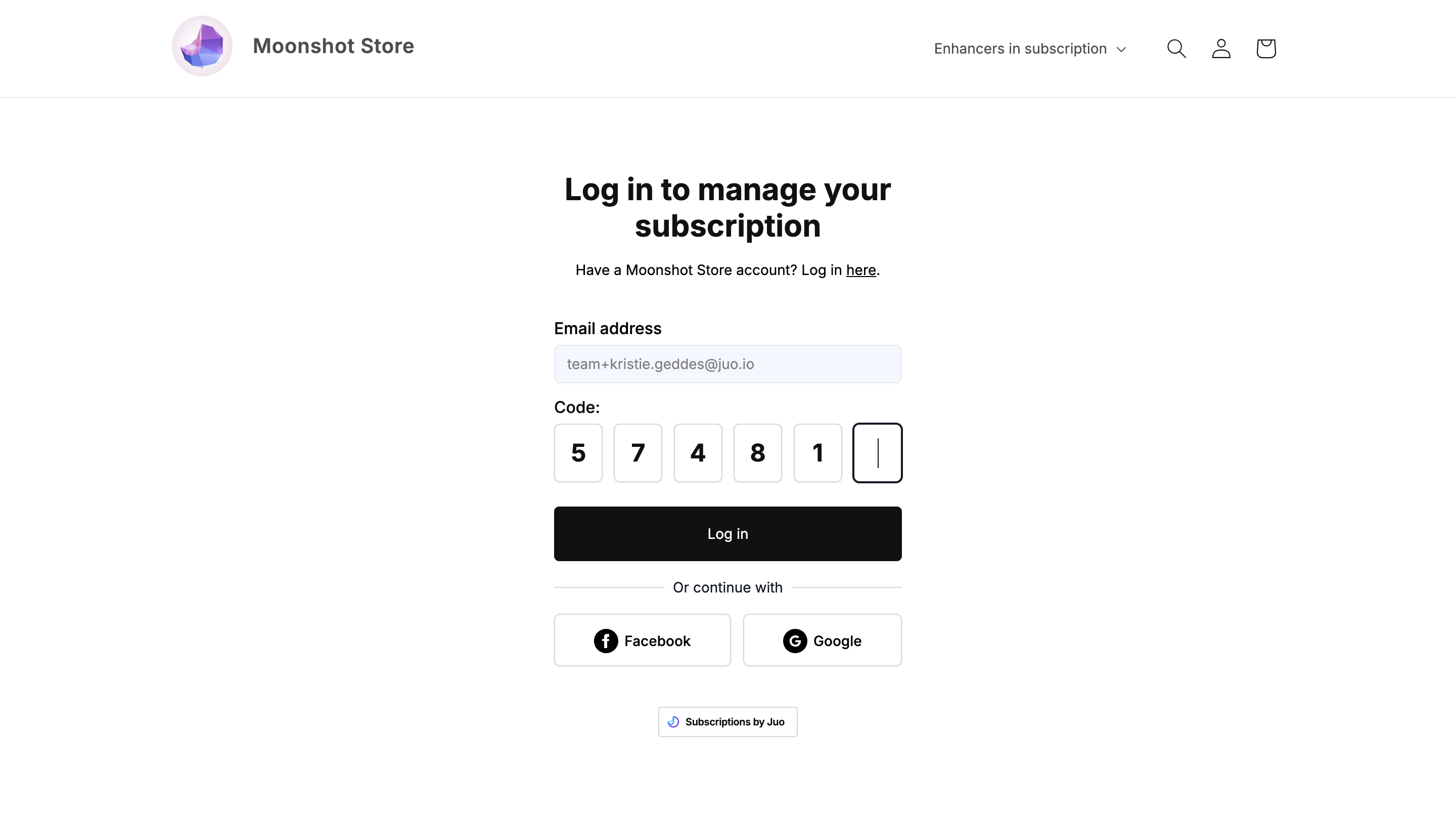
A customer account is not required to log in to the Customer Portal - subscribers can also log in with a one-time login code or their social media account.
### Logging in with an Account
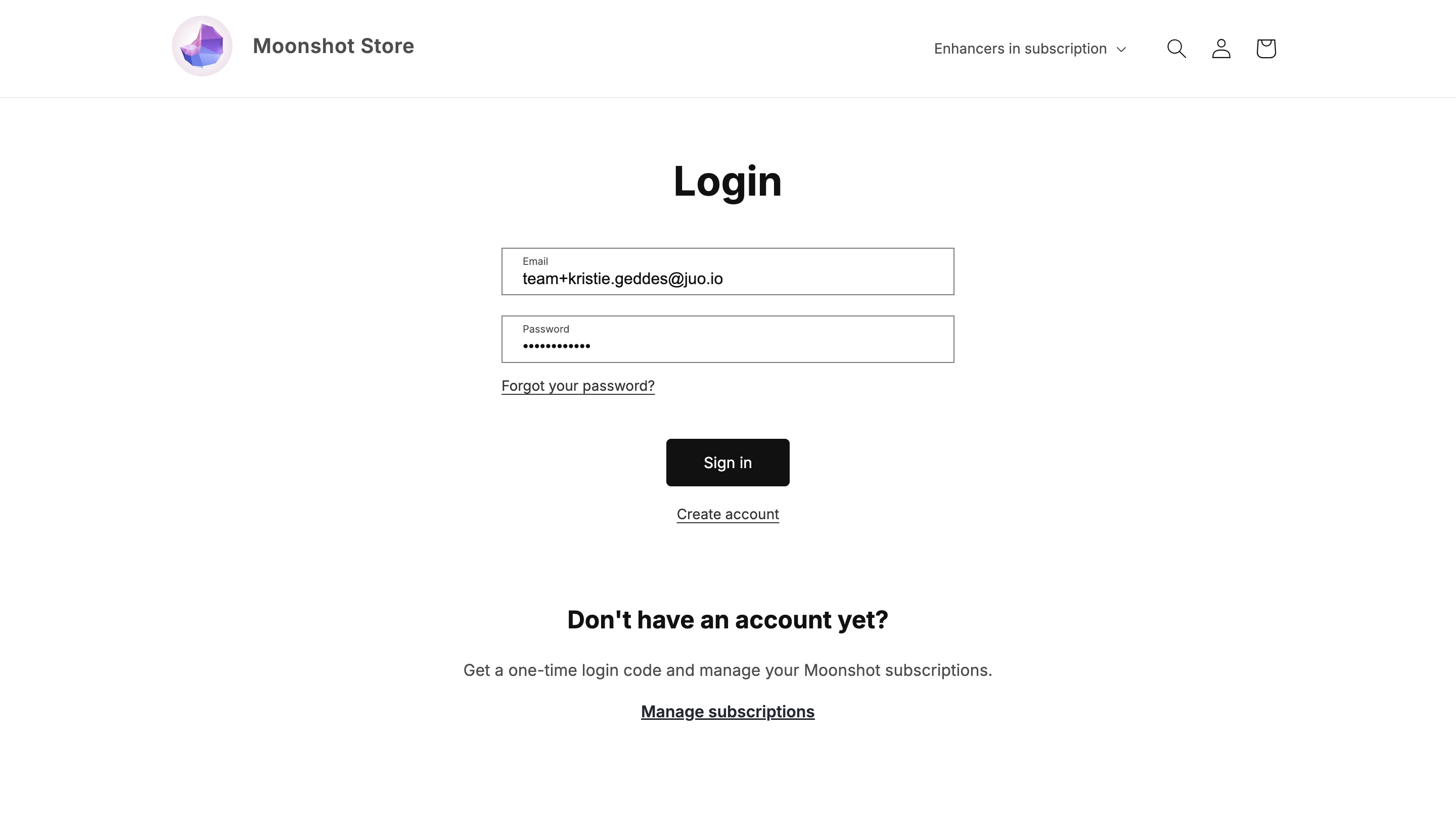
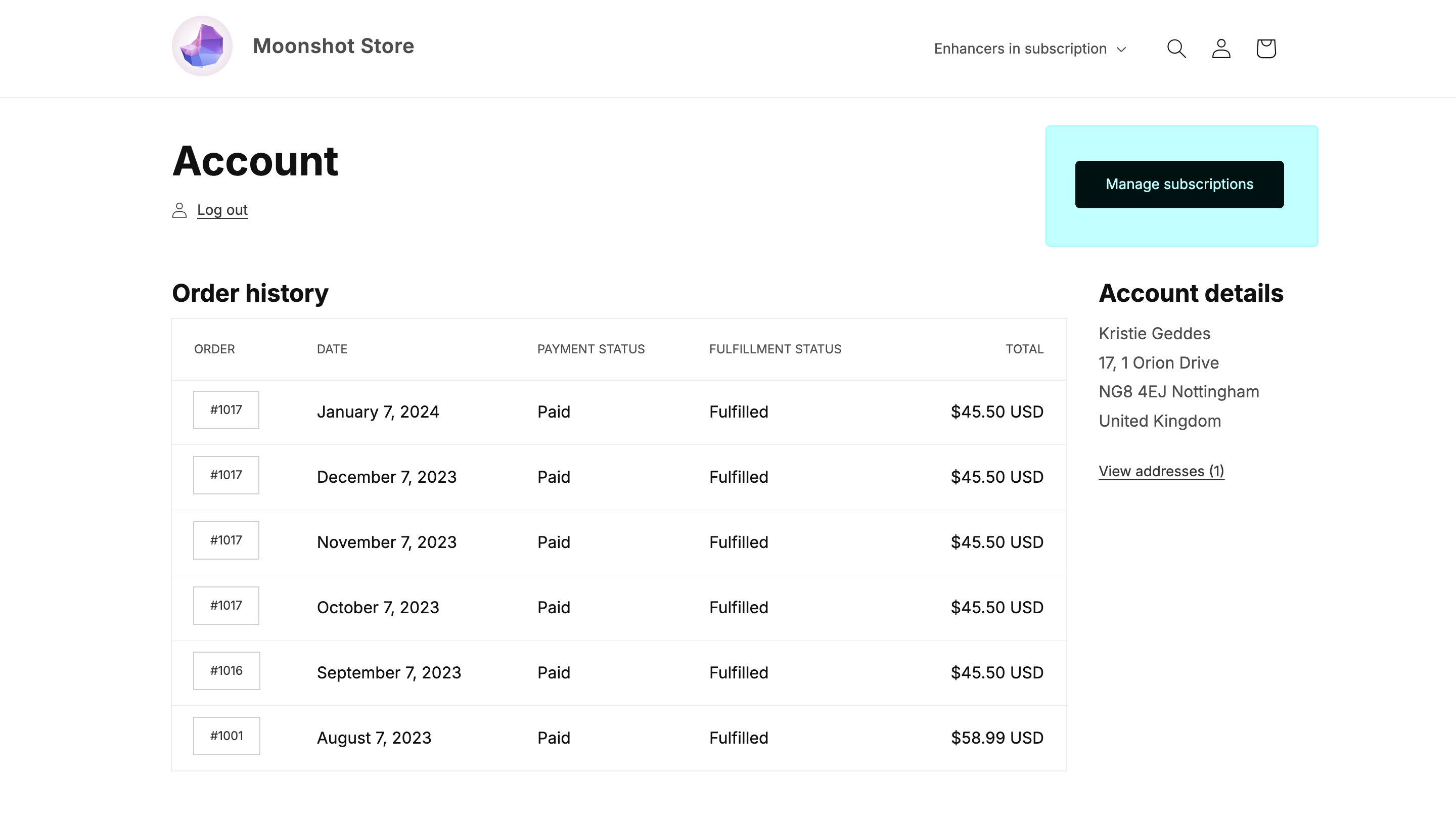
Subscribers who already have a store account can log in to their account and click on the **Manage subscription** button to get to the Customer Portal.
### Logging in without an Account
Juo offers passwordless and social login methods alongside the traditional login. Subscribers without an Account can still log in to the Customer Portal with a one-time login code sent to their emails. Alternatively, they can use Facebook or Google accounts login to proceed with subscription management.
## Managing subscriptions
The Customer Portal gives subscribers full control over their subscriptions: renewal dates, delivery frequencies, items in subscription, and so on.
### Managing orders
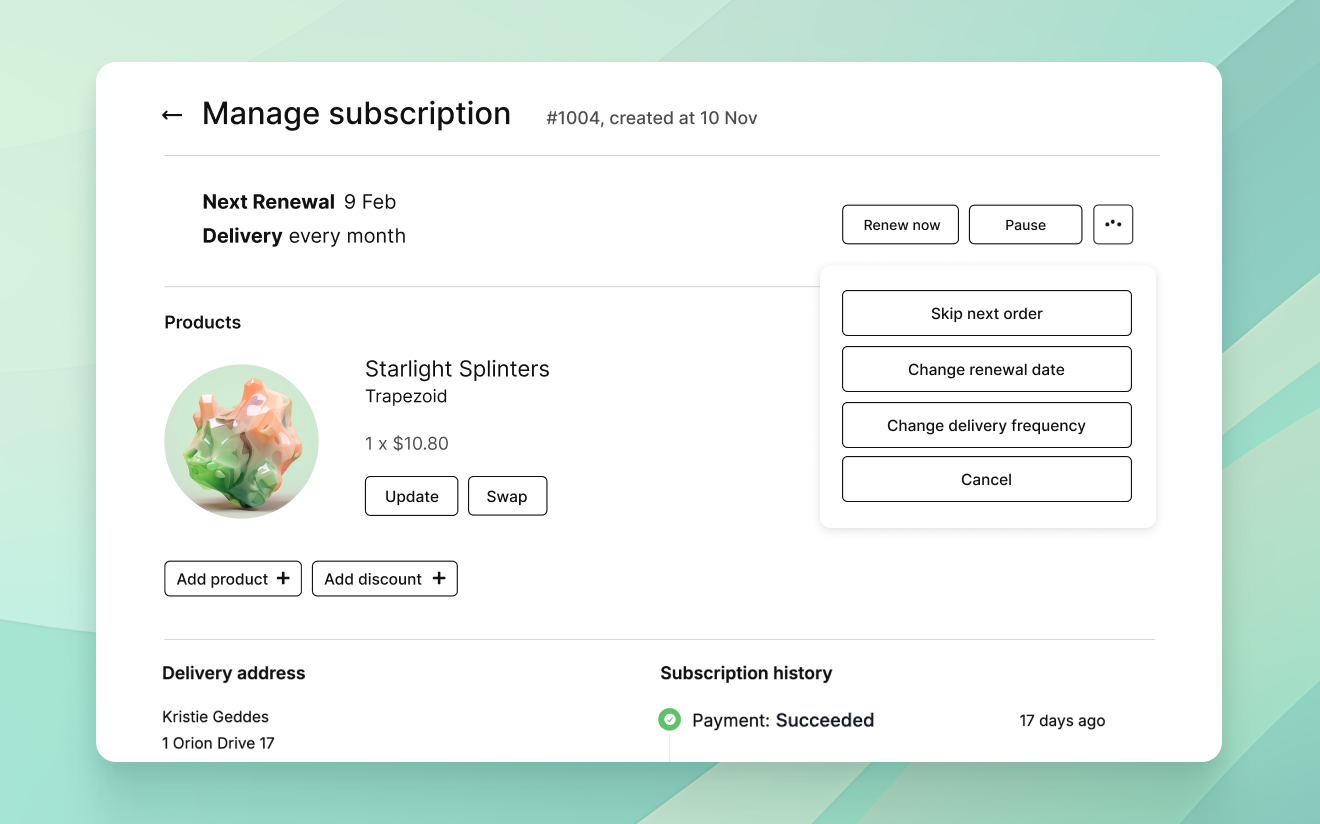
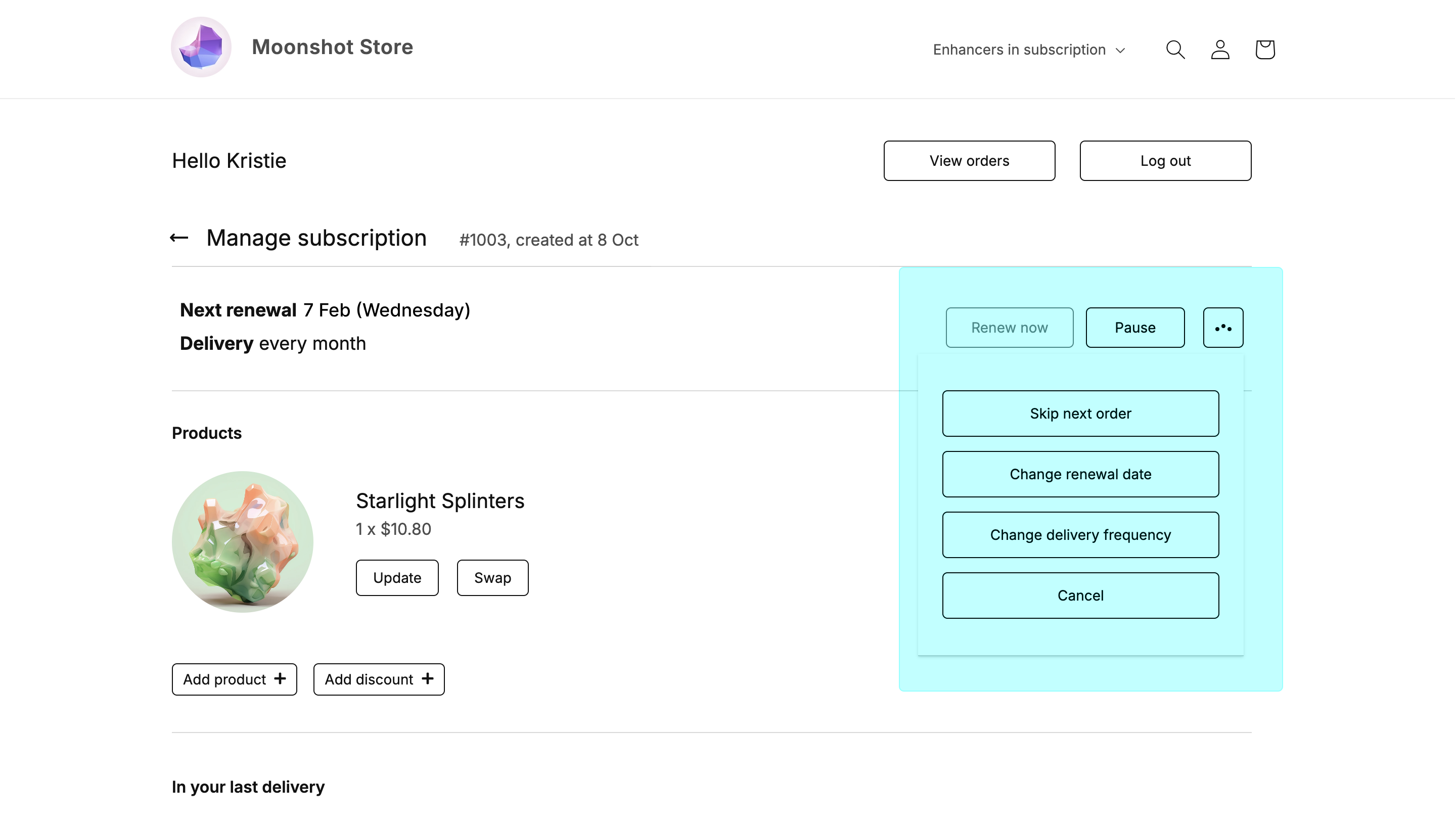
In the Customer Portal, subscribers are able to speed up, skip, or reschedule their next delivery, change delivery frequency, or pause and cancel the entire subscription. They can also edit, add, swap, or remove products currently in their subscription as well as add discounts to products.
#### Renew now
Allows the customer to immediately renew their subscription. A renewed subscription is immediately billed and scheduled for fulfilment.
#### Pause
Customers can pause their subscription anytime by clicking the **Pause** button next to an active subscription.
#### Resume
A paused subscription can be resumed by clicking a **Resume** button next to the **Renew now** button. A resumed subscription will become active and will renew on the next scheduled renewal date.
#### Cancel
Subscribers have the ability to cancel their subscription via the Customer Portal by clicking the **Cancel** button. A cancelled subscription will no longer be active and subscribers will not be able to reactivate it.
### Rescheduling subscriptions
#### Skip next order
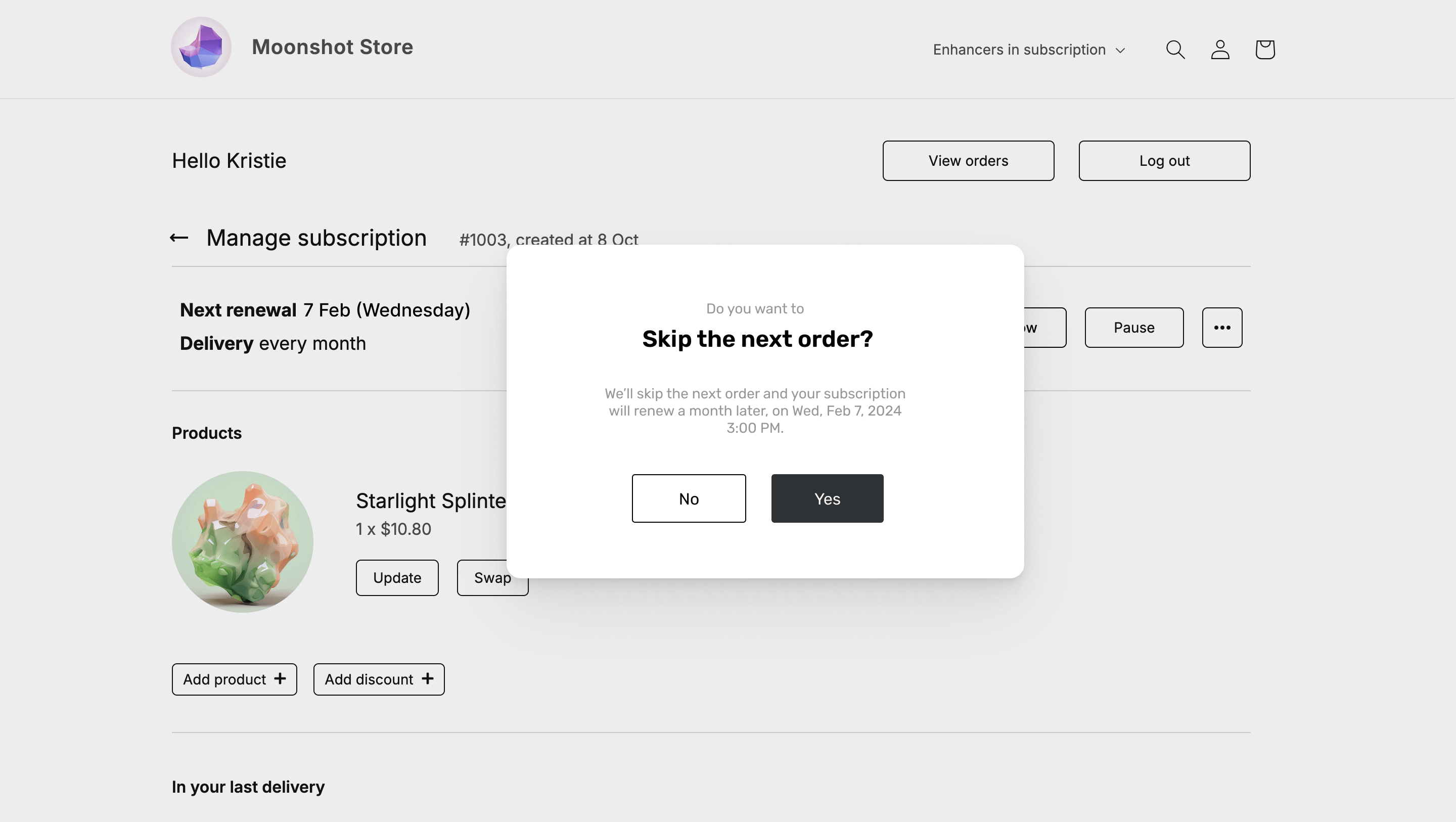
If subscribers want to skip the upcoming delivery, they can click on **Skip next order**. The next order and delivery will then be skipped without charging. The subscription will renew as planned on the next scheduled renewal date (e.g. a month later).
#### Change renewal date
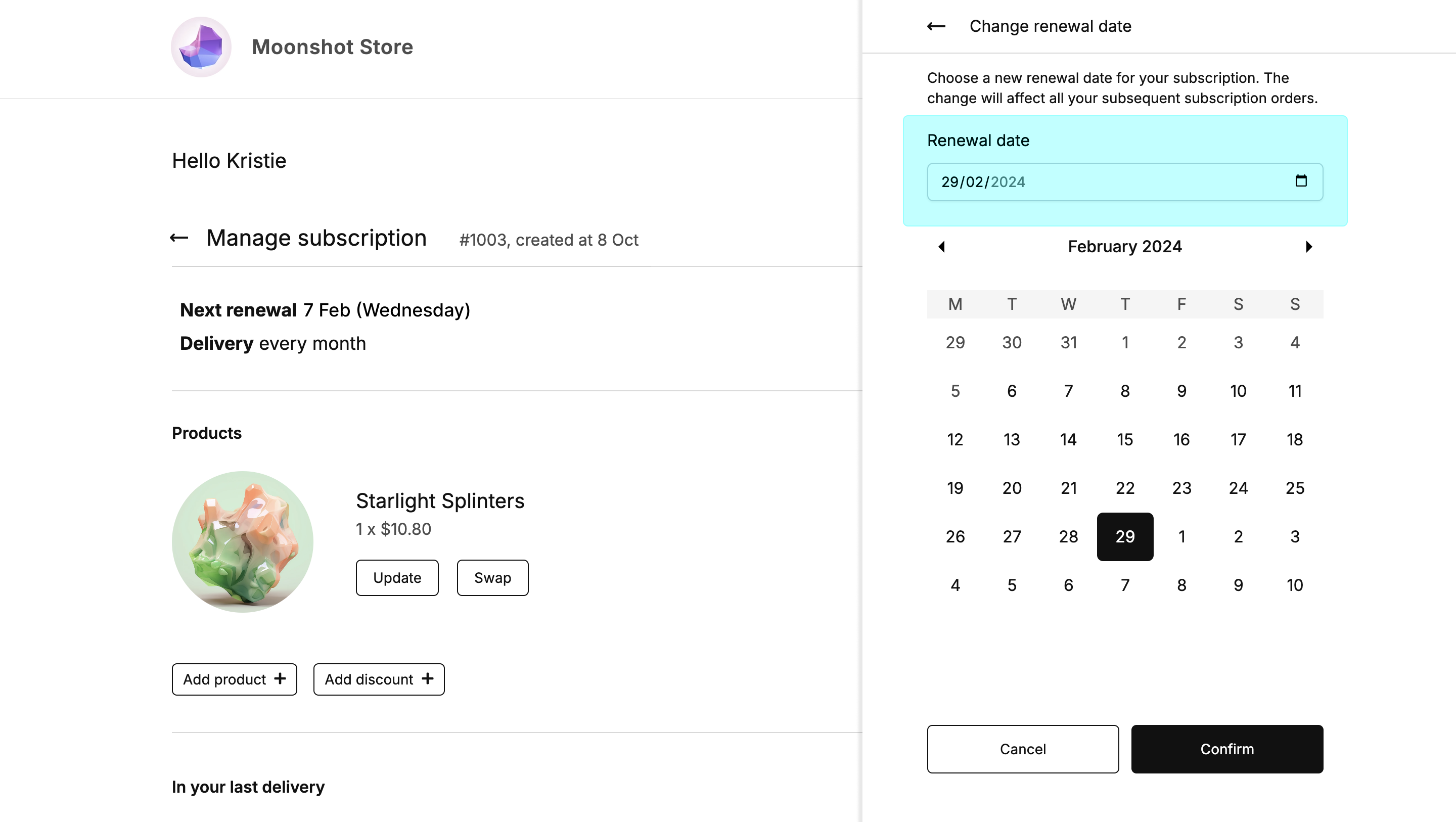
If subscribers want their order delivered at a later or earlier date, they can use **Change renewal date** to pick a different date from the date picker. Any future date can be picked as the next delivery date.
#### Change delivery frequency
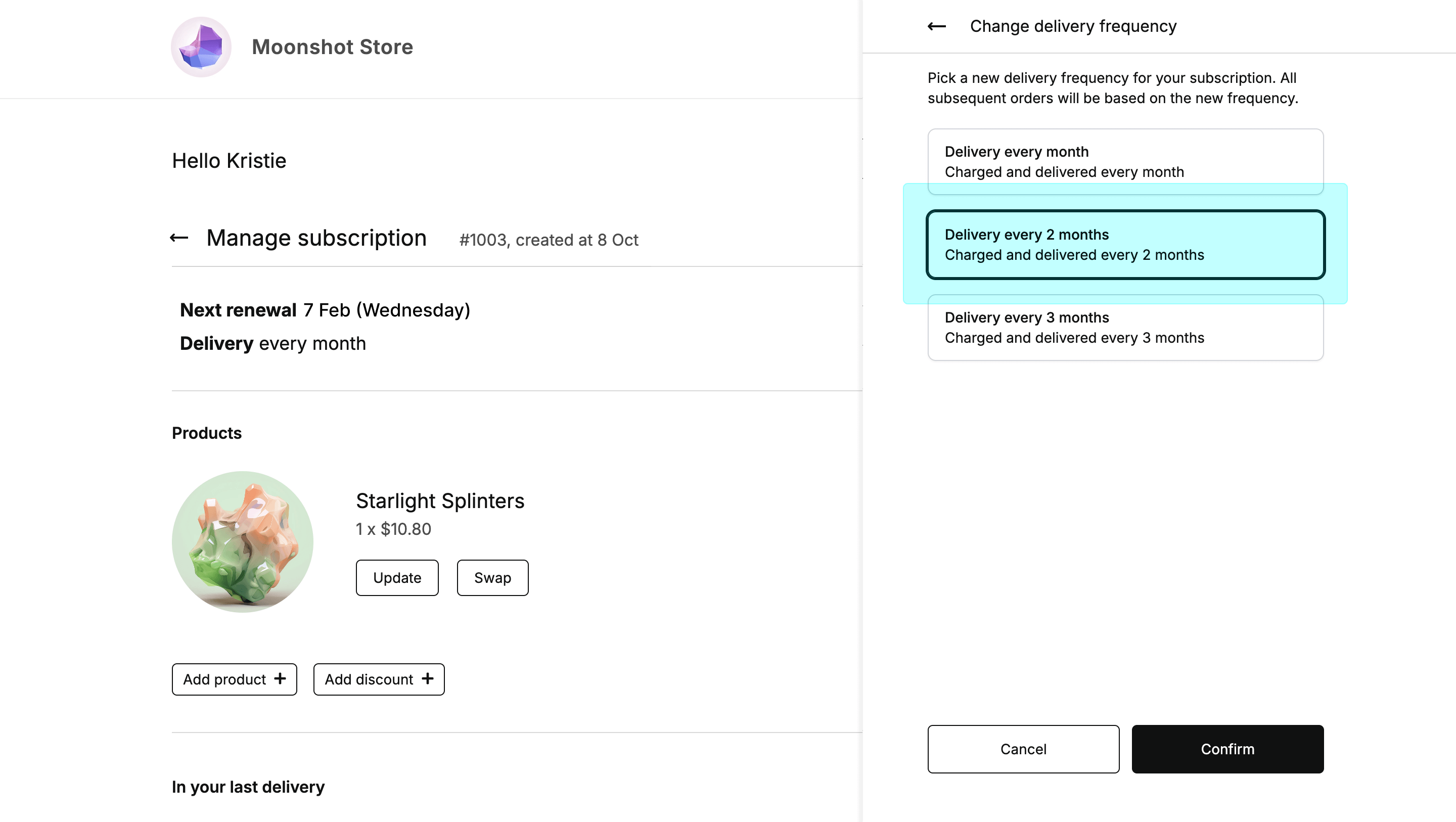
If the orders are too frequent or too sparse, subscribers can adjust the delivery frequency to their needs.
They can choose from any of the frequencies that are shared by all the products in their subscription.
## Changing the products in a subscription
Subscribers can overview and edit the content of their subscription orders using the Customer Portal: update, swap, add more products and add discounts to an existing subscription.
#### Update products
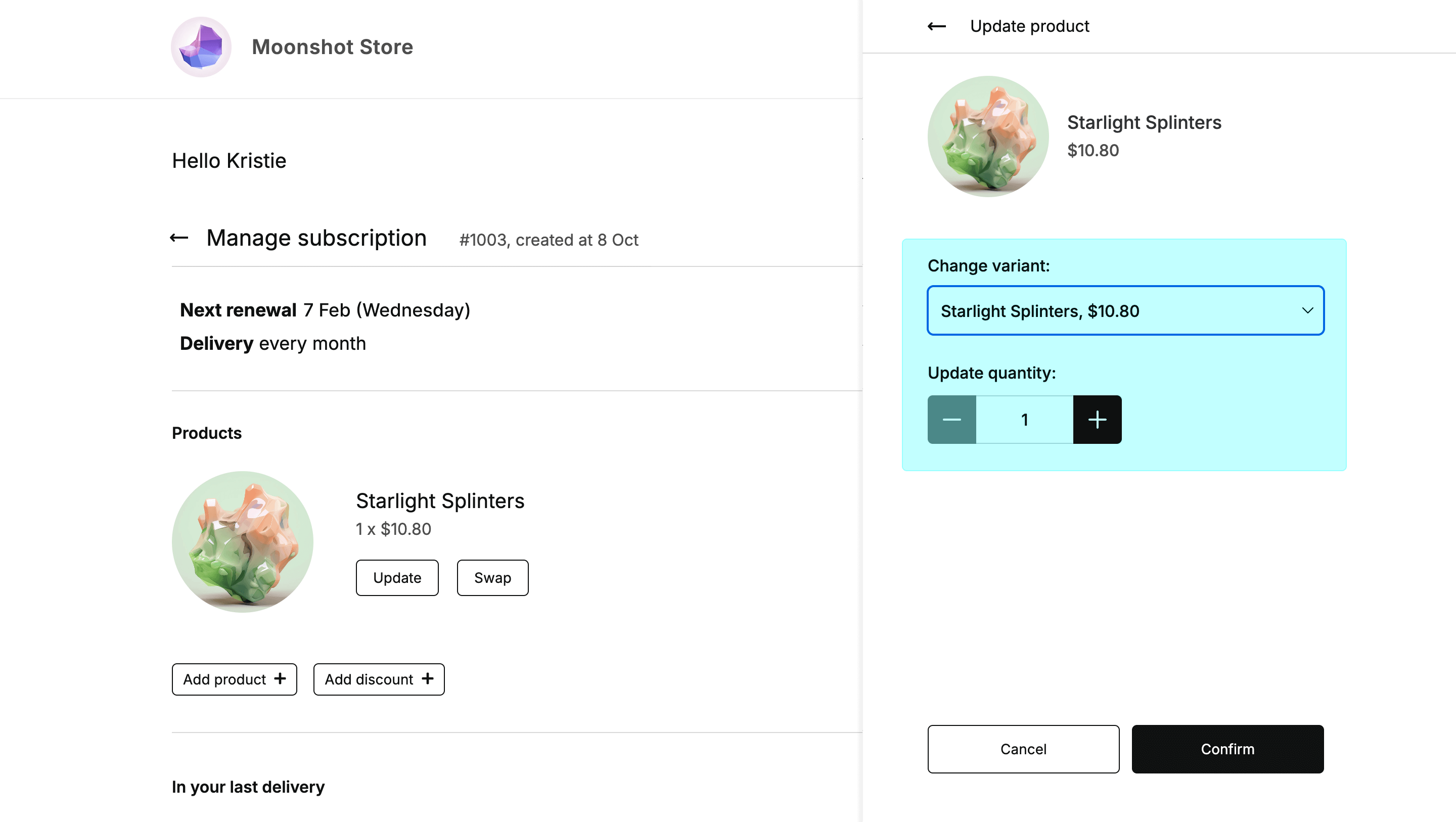
Subscribers can change the quantity of the products in their subscriptions. They can also switch to a different product variant.
#### Swap products
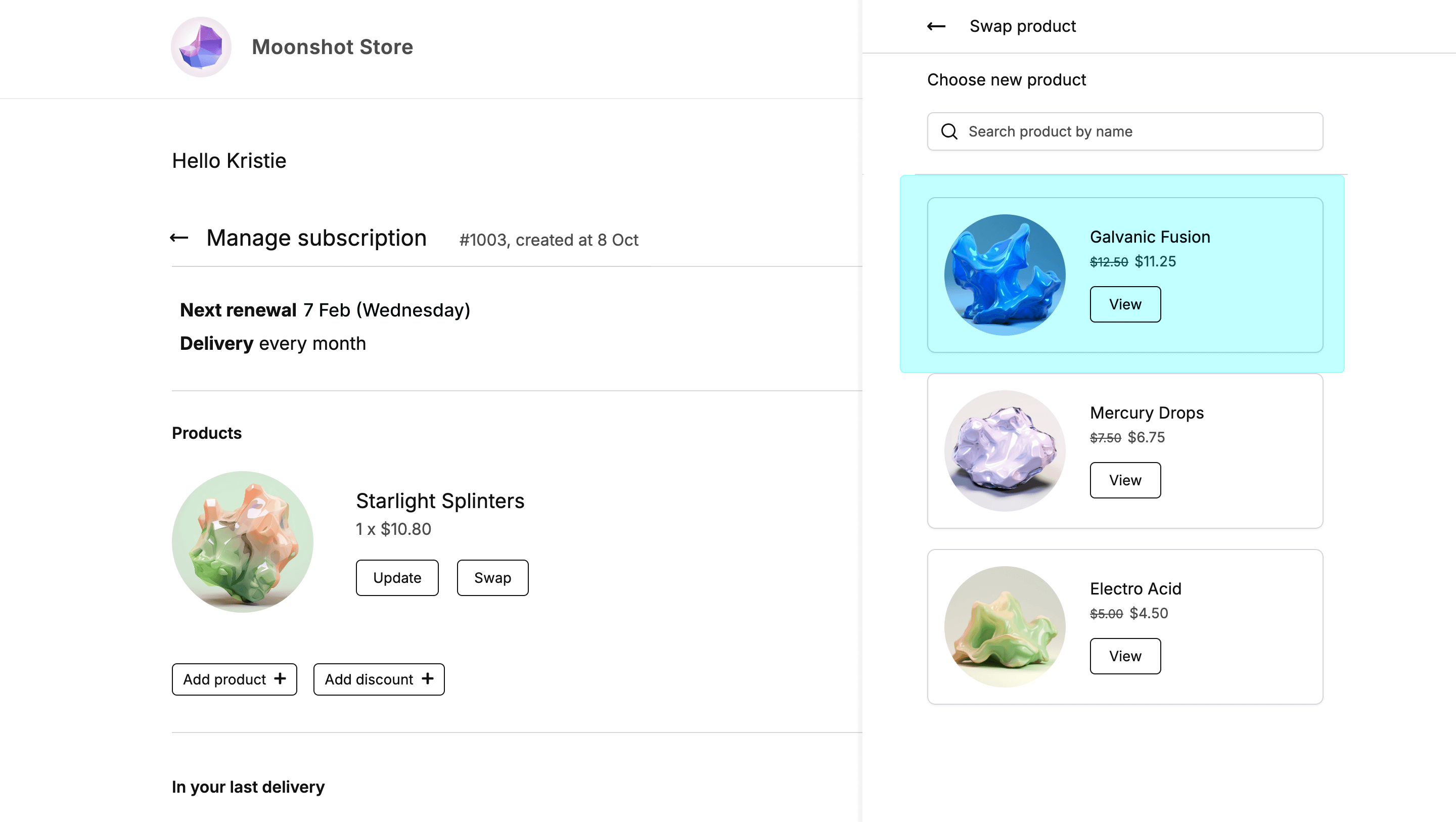
Any product in subscription can be swapped for a different product sold under the same subscription plan. Subscribers can choose from a list of products available for swapping and add a selected product in a chosen quantity.
#### Add products
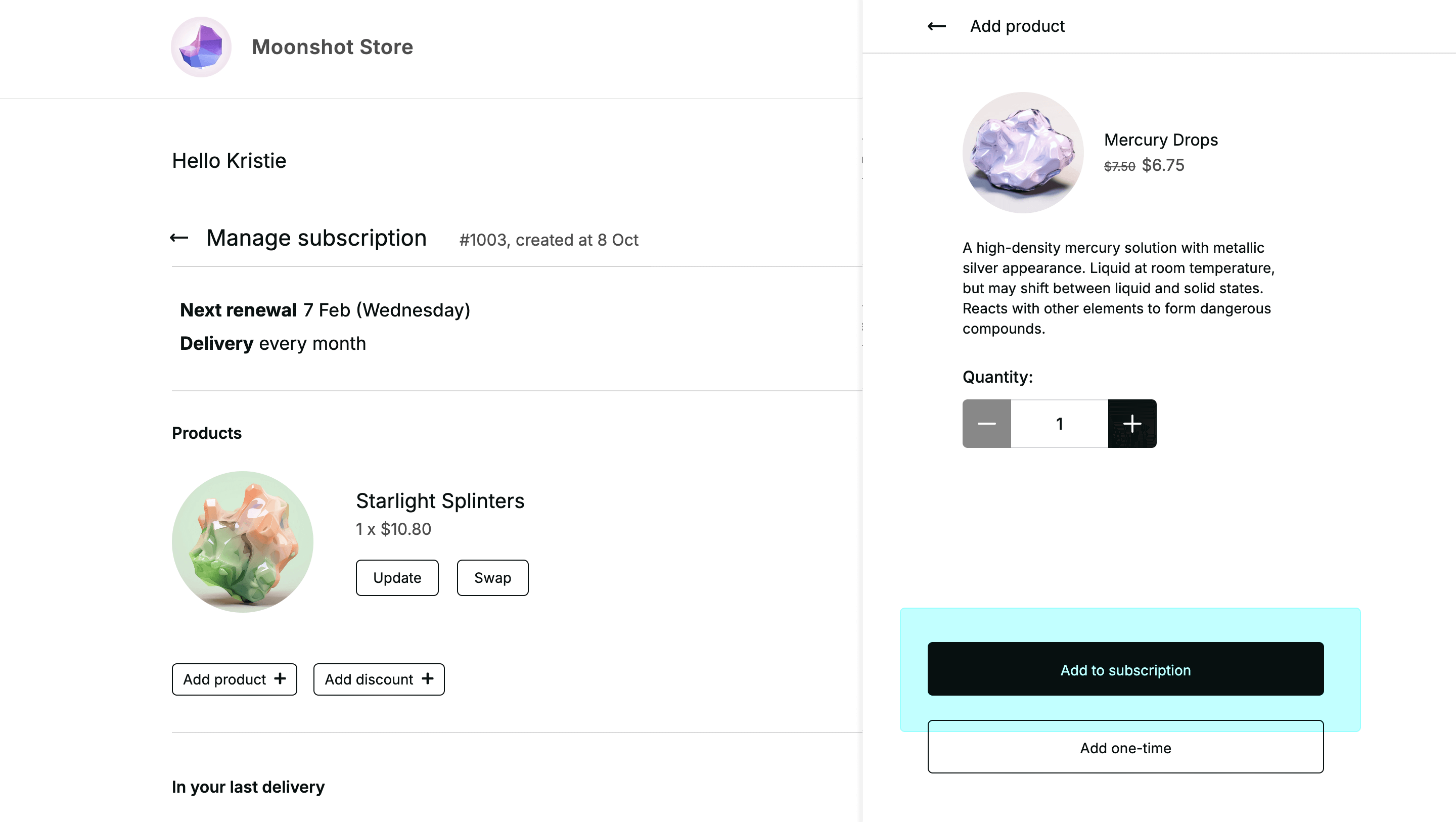
Products that are sold under the same selling plan can be easily added to a subscription from the Products section, by clicking on the **Add product** button, selecting the product or products from the list and clicking the **Confirm** button to save the changes.
#### Add discounts
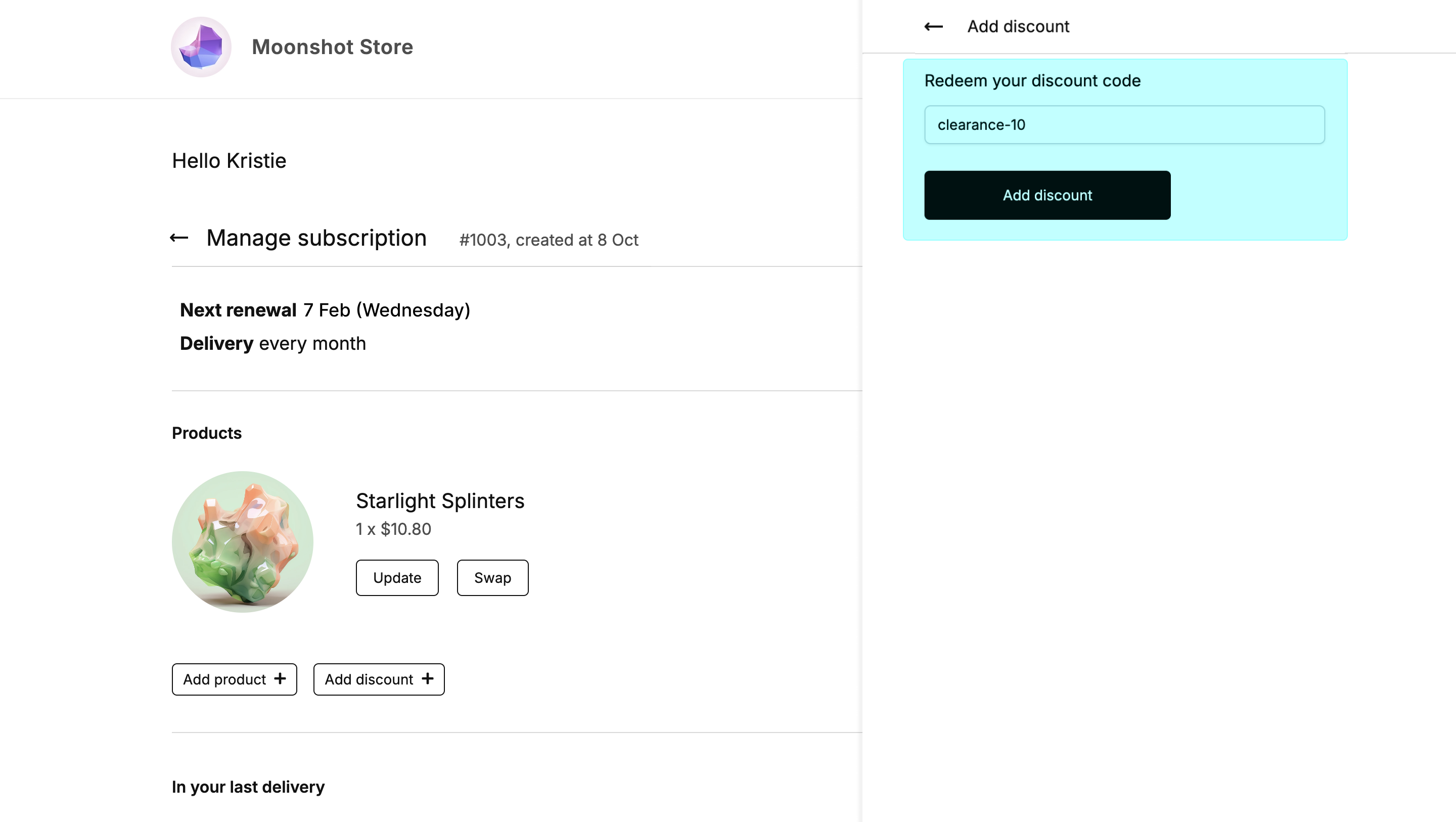
Discounts can also be added to subscriptions from the Product section. Adding a discount requires an eligible discount code that a subscriber can then enter into the discount code input field. Once entered, the **Add discount** will apply the discount and save it.
## Changing customer information
Subscribers can also use the Customer Portal to adjust their delivery address, delivery method, and payment method.
#### Change delivery address
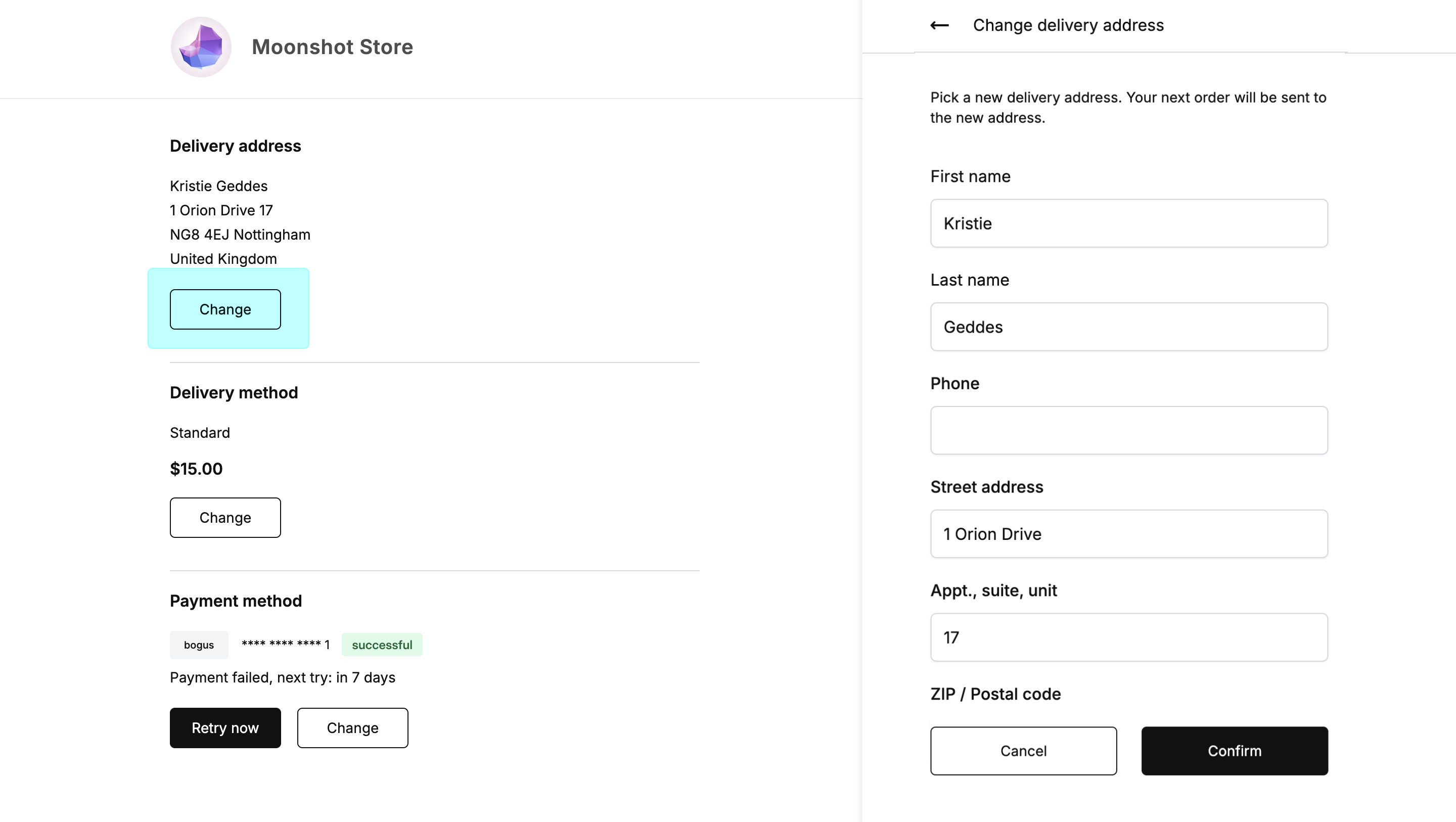
Under the Delivery address section, subscribers can change the address to which their subscription orders will be sent. The **Change** button allows to adjust the delivery address, the name and contact information.
#### Change delivery method
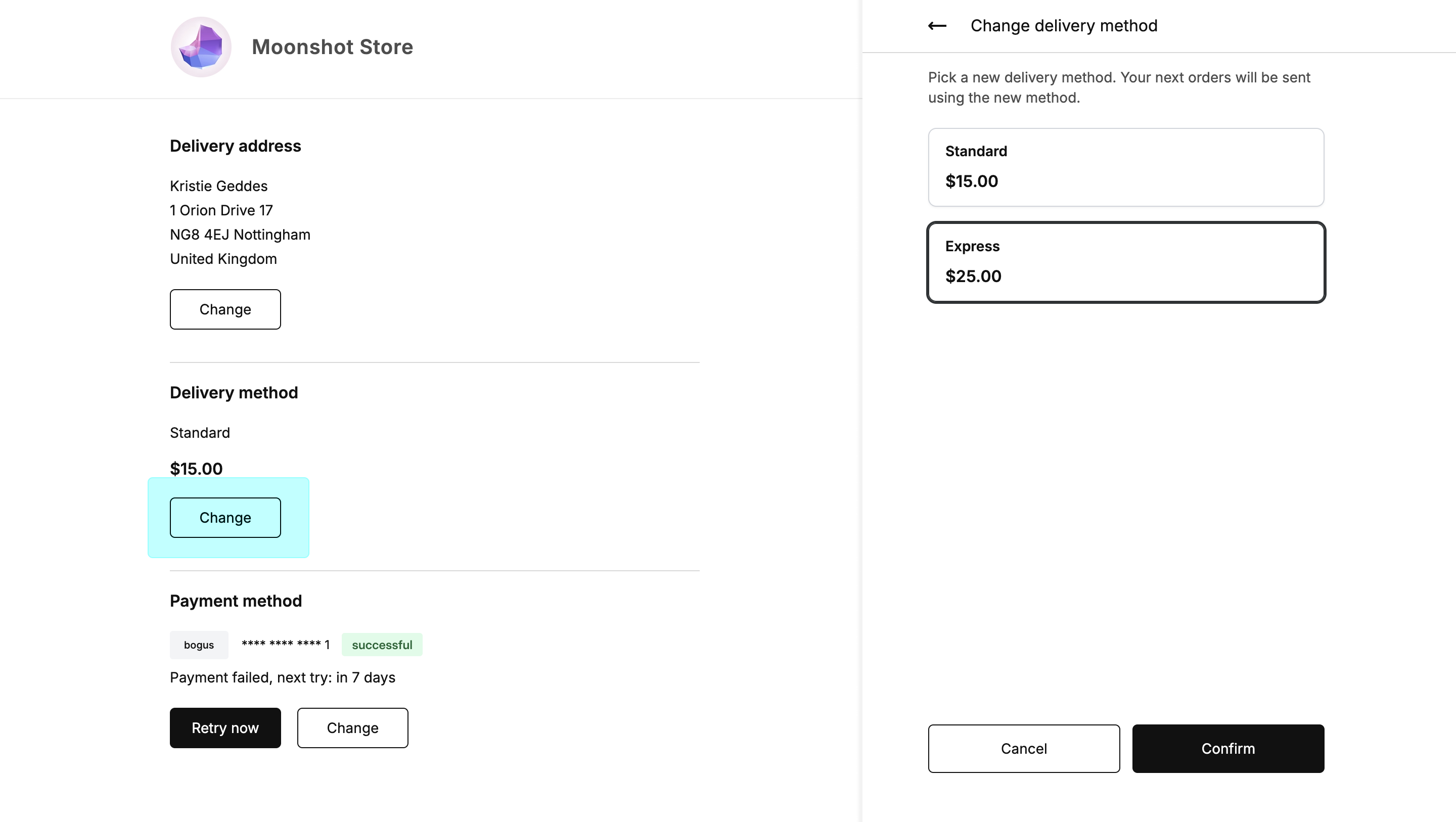
As with the delivery address, subscribers can also change how their subscription orders are delivered by choosing from alternative delivery methods available for the products in their subscription.
The changes will be applied starting from the next delivery.
### Changing payment method
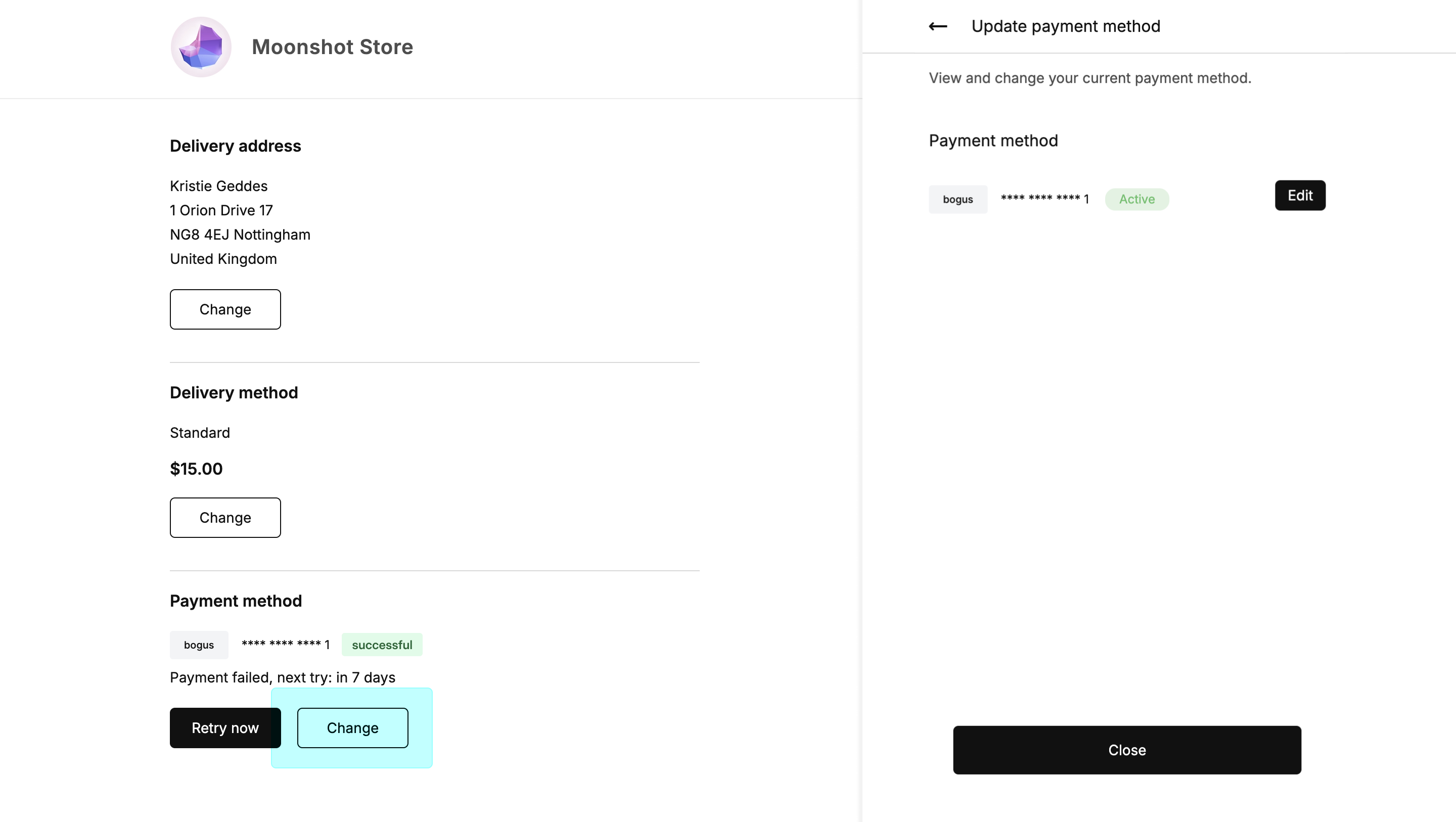
Finally, subscribers can change the way their subscriptions are paid for in the Customer Portal, by clicking on the **Change** under Payment method and editing the method they want to change.
A link to update the payment method will be sent to the email address that was used to log in to the Customer Portal.
## Available management options
The extent to which a subscription can be edited, depends on the [Customer Portal settings](/guides/using-global-settings#management-options). As a result, some management options, like editing or removing products, may not be available for a given subscription.
Similarly, some subscriptions will not be editable before a minimum number of renewals is reached. If this is the case, there will be a notification informing about how many renewals are still required before editing becomes possible.
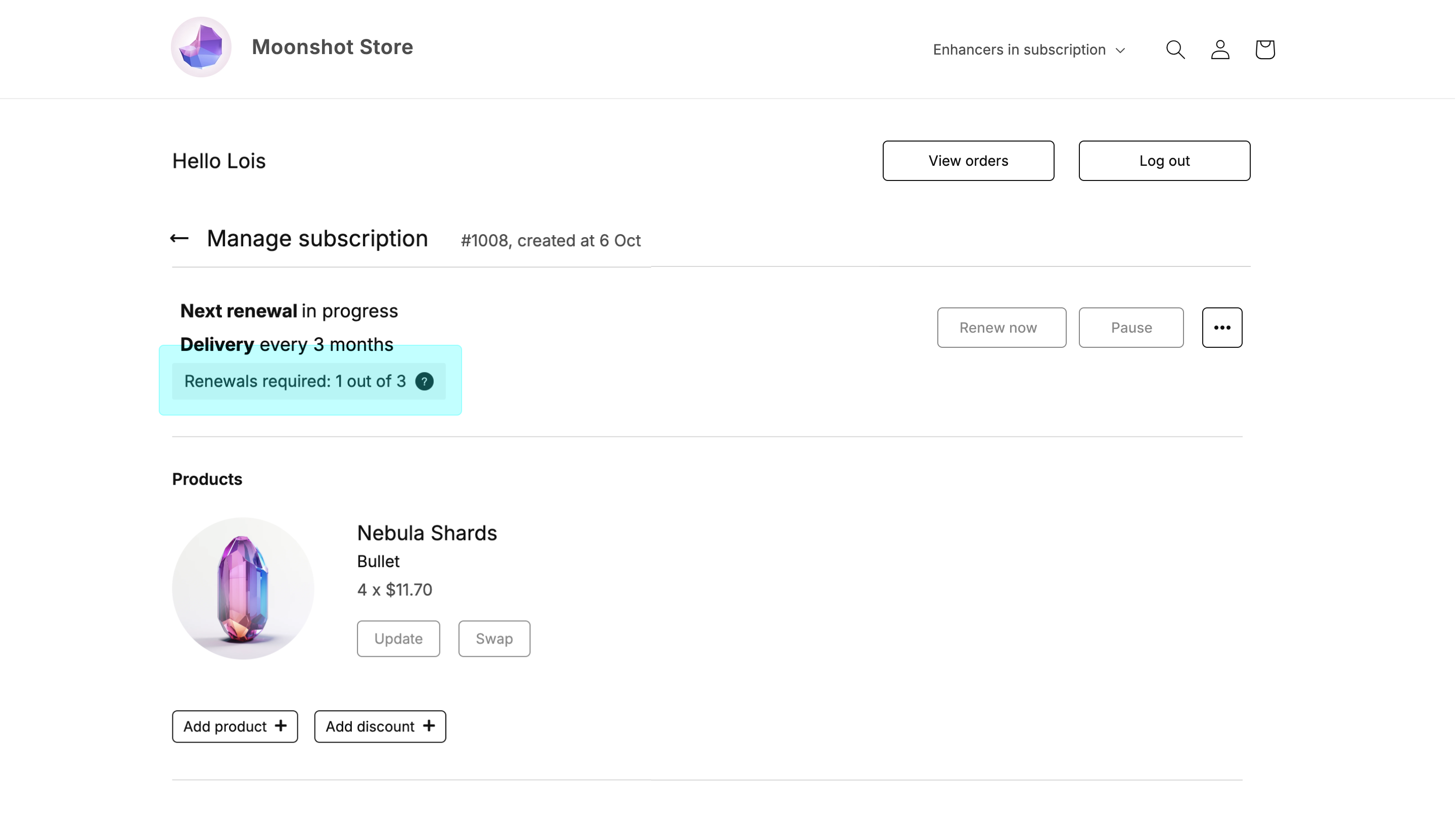
In this case, subscribers can reach out directly to the store and ask to have their
subscription edited.