> ## Documentation Index
> Fetch the complete documentation index at: https://juo.io/docs/llms.txt
> Use this file to discover all available pages before exploring further.
# Editor
The **Editor** is a visual customization tool available for admins and developers. Use it to design how subscribers see and interact with the Customer Portal, create custom blocks, and ensure the whole subscription experience is perfectly aligned with your brand.
## Editor layout
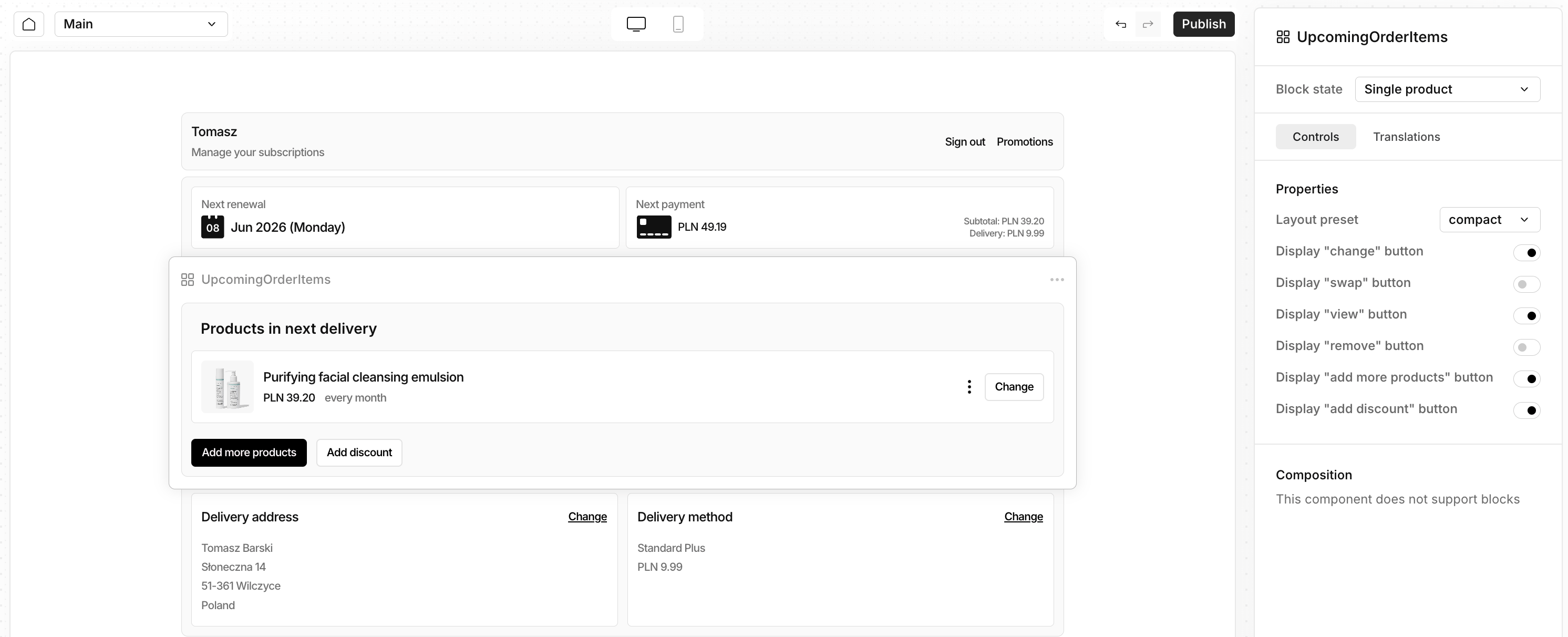 | Area | What it does |
| ---------------------------- | -------------------------------------------------------------------------------------------- |
| **Live preview** | Shows the Customer Portal as subscribers will see it. Click any block to select it. |
| **Desktop / mobile toggle** | Check layout on phone-sized and desktop viewports. |
| **Page / workflow selector** | Switch between Login, Main subscription page, workflows, and more. |
| **Preview customer** | Pick a real customer so renewal dates, products, and banners reflect real subscription data. |
| **Right sidebar** | Edit the selected block or global theme. |
| **Publish** | Push all saved drafts live. |
| **Home** | Return to the Admin dashboard or Workflows builder. |
### Sidebar tabs
When you select a block (or the page root), the sidebar offers up to three tabs:
1. **Controls** — Settings for that block: toggles, dropdowns, colors, and layout options.
2. **Styles** — **Global theme** for the portal (available on the main page root): density, surface style, corner shapes, and colors.
3. **Translations** — Override text for the current language at theme level or for the selected block.
Some text can also be edited **directly in the preview**. Click the text in the preview; it highlights as editable without using the sidebar.
### Working with blocks
* **Select** — Click a block in the preview.
* **Add** — Use **Add block** on the page. Blocks are grouped as **Juo Blocks** (built-in), **My blocks** (your published custom blocks), and **Integrations** (partner blocks), when available.
* **Reorder** — Drag blocks in the sidebar composition list.
* **Remove** — Delete a block from the composition panel.
* **Undo / redo** — Revert recent layout and style changes.
## Pages
In the current version of the Editor, you can edit the Main Customer Portal view and the Login page view. You can also edit views created by Workflows.
## Built-in blocks
These are the standard blocks you can add, remove, and configure on the **Main** subscription page.
### Header
Top of the portal: greeting, subtitle, and navigation actions.
* Edit greeting and subtitle inline
* Show or hide the customer name
* Choose menu layout: links or icon menu
* Reorder built-in actions (e.g. View orders, Log out) and add up to two **custom links** (label + URL)
### Banner
A custom banner that can contain text, media, and applicable discount codes. Controls let you change presets, height, alignment, image placement, and CTA URL.
### Renewal summary
A flexible renewal hub with status labels, next payment/delivery callouts, price breakdown, and actions (skip, renew now, pause, and more).
### Upsell
Product recommendations carousel for add-ons, samples, and discounted items. Works with Upsells configured in Admin.
### Upcoming order items
Line items for the next scheduled order. Customers can change products and add a discount code.
### Customer subscriptions
Shows the customer's other subscriptions when they have more than one.
### Payment method
Section designed to view or update the payment method on file.
### Delivery section
Shows shipping and delivery address details.
### Subscription history
Shows past orders and billing history for the subscription.
### Login
This block is dedicated for the Customer Portal login page. It allows you to customize the email sign-in flow and optional social providers. Many labels, buttons, and error messages support inline editing. Use **presets** to preview steps: email entry, code verification, validation errors, and social redirect.
### Discount
Discount-related UI. See [discounts](/discounts) for setup details.
## Workflow action blocks
When you use [Workflows](/workflows/workflows-overview) for retention, cancellation saves, dunning, polls, and similar flows, each interactive step has a matching **action block** in the flow overlay.
| Block purpose | Examples |
| ------------- | ------------------------------------------------------------------------------------ |
| Offers | Discount, free gift, pause, delay renewal, swap product, renew now, change frequency |
| Input | Poll, choice buttons, collect feedback, offer selection |
| Content | Show content, show confirmation |
Open a workflow in the builder and click **Preview in Editor** to customize how that step looks to subscribers.
## Global styles
At the **Main** page root, the **Styles** tab controls the theme applied across all blocks:
| Setting | What it changes |
| --------------------- | -------------------------------------------------------------------------------------------------- |
| **Volume** | Compact, comfort, or spacious spacing |
| **Surface style** | Bare, ghost, tinted, solid, or layered cards |
| **Corners** | Sharp, soft, round, or pill shapes for cards |
| **Button corners** | Sharp, round, or circle |
| **Thumbnail corners** | Product image rounding |
| **Theme** | Preset (neutral / warm / cool) or **custom colors** |
| **Custom colors** | Accent, secondary, tint, callout background, success, error, information, warning, page background |
Global styles are saved and published together with block layouts when you **Publish**.
Start with global styles so colors and spacing match your brand, then tune
individual blocks.
## Translations
The **Translations** tab lets you:
* Switch **locale** (language) for editing
* Override theme-wide strings
* Override strings for the **selected block** only
If you don't override a string, the default translation is used. Overrides are stored per locale and published with the rest of your theme.
## Draft and publish
| Concept | Behavior |
| ----------------------- | --------------------------------------------------------------------------------------------------- |
| **Draft** | Your work in progress; subscribers still see the last **published** version. |
| **Auto-save** | Layout, global styles, and translation drafts save as you edit. |
| **Unpublished changes** | You saved drafts but have not published since your last publish (or since another admin published). |
| **Publish** | Makes current drafts live for the Customer Portal. |
**Publish** is enabled when there are unsaved changes or unpublished drafts. Review the preview on desktop and mobile, and check data with **preview customer**, before publishing.
There is no partial publish per block—all draft changes go live together when you publish.
If another admin published while you were editing, you may see a stale-data
message. Refresh and re-apply your changes if needed.
## Tips
1. Use **preview customer** to verify renewal dates, [Upsells](/upsells), and notification banners with real data.
2. Use **presets** on blocks like Subscription notifications, Renewal summary v2, and Upsell to design for edge cases—not only the happy path.
3. Block order matters for subscriber scanning: header → alerts → renewal → upsell → details. Remove blocks you do not need.
4. Management options (what subscribers can do in the portal) are still configured in [General settings](/general-settings)—the Editor controls layout and presentation.
***
## Custom blocks (for developers)
Merchants can extend the portal with **custom blocks** built by a development team or agency. Custom blocks appear in the Editor under **My blocks** after they are published to your shop.
### When to use custom blocks
* Brand-specific widgets (loyalty, calculators, third-party embeds)
* Unique layout or data not covered by built-in Juo blocks
* Elements injected from external integrations, grouped as **Integrations**
Built-in product features (renewal, upsell, login, workflows) should stay on **Juo Blocks** unless you are intentionally replacing a section with a maintained custom implementation.
### How it works
1. A developer creates a **block theme project** (React or Preact components by default).
2. Each block defines a name, merchant-editable settings (shown in the Controls tab), a renderer for the Customer Portal, and optional presets and locale files.
3. The project is **built** and **published** to Juo's block registry for your shop.
4. The Customer Portal loads the registry alongside built-in blocks; the Editor discovers new blocks automatically.
To learn more about the implementation of custom blocks, please consult our detailed developer documentation here: [Blocks](https://juo.dev/docs/blocks/overview)
| Area | What it does |
| ---------------------------- | -------------------------------------------------------------------------------------------- |
| **Live preview** | Shows the Customer Portal as subscribers will see it. Click any block to select it. |
| **Desktop / mobile toggle** | Check layout on phone-sized and desktop viewports. |
| **Page / workflow selector** | Switch between Login, Main subscription page, workflows, and more. |
| **Preview customer** | Pick a real customer so renewal dates, products, and banners reflect real subscription data. |
| **Right sidebar** | Edit the selected block or global theme. |
| **Publish** | Push all saved drafts live. |
| **Home** | Return to the Admin dashboard or Workflows builder. |
### Sidebar tabs
When you select a block (or the page root), the sidebar offers up to three tabs:
1. **Controls** — Settings for that block: toggles, dropdowns, colors, and layout options.
2. **Styles** — **Global theme** for the portal (available on the main page root): density, surface style, corner shapes, and colors.
3. **Translations** — Override text for the current language at theme level or for the selected block.
Some text can also be edited **directly in the preview**. Click the text in the preview; it highlights as editable without using the sidebar.
### Working with blocks
* **Select** — Click a block in the preview.
* **Add** — Use **Add block** on the page. Blocks are grouped as **Juo Blocks** (built-in), **My blocks** (your published custom blocks), and **Integrations** (partner blocks), when available.
* **Reorder** — Drag blocks in the sidebar composition list.
* **Remove** — Delete a block from the composition panel.
* **Undo / redo** — Revert recent layout and style changes.
## Pages
In the current version of the Editor, you can edit the Main Customer Portal view and the Login page view. You can also edit views created by Workflows.
## Built-in blocks
These are the standard blocks you can add, remove, and configure on the **Main** subscription page.
### Header
Top of the portal: greeting, subtitle, and navigation actions.
* Edit greeting and subtitle inline
* Show or hide the customer name
* Choose menu layout: links or icon menu
* Reorder built-in actions (e.g. View orders, Log out) and add up to two **custom links** (label + URL)
### Banner
A custom banner that can contain text, media, and applicable discount codes. Controls let you change presets, height, alignment, image placement, and CTA URL.
### Renewal summary
A flexible renewal hub with status labels, next payment/delivery callouts, price breakdown, and actions (skip, renew now, pause, and more).
### Upsell
Product recommendations carousel for add-ons, samples, and discounted items. Works with Upsells configured in Admin.
### Upcoming order items
Line items for the next scheduled order. Customers can change products and add a discount code.
### Customer subscriptions
Shows the customer's other subscriptions when they have more than one.
### Payment method
Section designed to view or update the payment method on file.
### Delivery section
Shows shipping and delivery address details.
### Subscription history
Shows past orders and billing history for the subscription.
### Login
This block is dedicated for the Customer Portal login page. It allows you to customize the email sign-in flow and optional social providers. Many labels, buttons, and error messages support inline editing. Use **presets** to preview steps: email entry, code verification, validation errors, and social redirect.
### Discount
Discount-related UI. See [discounts](/discounts) for setup details.
## Workflow action blocks
When you use [Workflows](/workflows/workflows-overview) for retention, cancellation saves, dunning, polls, and similar flows, each interactive step has a matching **action block** in the flow overlay.
| Block purpose | Examples |
| ------------- | ------------------------------------------------------------------------------------ |
| Offers | Discount, free gift, pause, delay renewal, swap product, renew now, change frequency |
| Input | Poll, choice buttons, collect feedback, offer selection |
| Content | Show content, show confirmation |
Open a workflow in the builder and click **Preview in Editor** to customize how that step looks to subscribers.
## Global styles
At the **Main** page root, the **Styles** tab controls the theme applied across all blocks:
| Setting | What it changes |
| --------------------- | -------------------------------------------------------------------------------------------------- |
| **Volume** | Compact, comfort, or spacious spacing |
| **Surface style** | Bare, ghost, tinted, solid, or layered cards |
| **Corners** | Sharp, soft, round, or pill shapes for cards |
| **Button corners** | Sharp, round, or circle |
| **Thumbnail corners** | Product image rounding |
| **Theme** | Preset (neutral / warm / cool) or **custom colors** |
| **Custom colors** | Accent, secondary, tint, callout background, success, error, information, warning, page background |
Global styles are saved and published together with block layouts when you **Publish**.
Start with global styles so colors and spacing match your brand, then tune
individual blocks.
## Translations
The **Translations** tab lets you:
* Switch **locale** (language) for editing
* Override theme-wide strings
* Override strings for the **selected block** only
If you don't override a string, the default translation is used. Overrides are stored per locale and published with the rest of your theme.
## Draft and publish
| Concept | Behavior |
| ----------------------- | --------------------------------------------------------------------------------------------------- |
| **Draft** | Your work in progress; subscribers still see the last **published** version. |
| **Auto-save** | Layout, global styles, and translation drafts save as you edit. |
| **Unpublished changes** | You saved drafts but have not published since your last publish (or since another admin published). |
| **Publish** | Makes current drafts live for the Customer Portal. |
**Publish** is enabled when there are unsaved changes or unpublished drafts. Review the preview on desktop and mobile, and check data with **preview customer**, before publishing.
There is no partial publish per block—all draft changes go live together when you publish.
If another admin published while you were editing, you may see a stale-data
message. Refresh and re-apply your changes if needed.
## Tips
1. Use **preview customer** to verify renewal dates, [Upsells](/upsells), and notification banners with real data.
2. Use **presets** on blocks like Subscription notifications, Renewal summary v2, and Upsell to design for edge cases—not only the happy path.
3. Block order matters for subscriber scanning: header → alerts → renewal → upsell → details. Remove blocks you do not need.
4. Management options (what subscribers can do in the portal) are still configured in [General settings](/general-settings)—the Editor controls layout and presentation.
***
## Custom blocks (for developers)
Merchants can extend the portal with **custom blocks** built by a development team or agency. Custom blocks appear in the Editor under **My blocks** after they are published to your shop.
### When to use custom blocks
* Brand-specific widgets (loyalty, calculators, third-party embeds)
* Unique layout or data not covered by built-in Juo blocks
* Elements injected from external integrations, grouped as **Integrations**
Built-in product features (renewal, upsell, login, workflows) should stay on **Juo Blocks** unless you are intentionally replacing a section with a maintained custom implementation.
### How it works
1. A developer creates a **block theme project** (React or Preact components by default).
2. Each block defines a name, merchant-editable settings (shown in the Controls tab), a renderer for the Customer Portal, and optional presets and locale files.
3. The project is **built** and **published** to Juo's block registry for your shop.
4. The Customer Portal loads the registry alongside built-in blocks; the Editor discovers new blocks automatically.
To learn more about the implementation of custom blocks, please consult our detailed developer documentation here: [Blocks](https://juo.dev/docs/blocks/overview)