> ## Documentation Index
> Fetch the complete documentation index at: https://juo.io/docs/llms.txt
> Use this file to discover all available pages before exploring further.
# Upsells
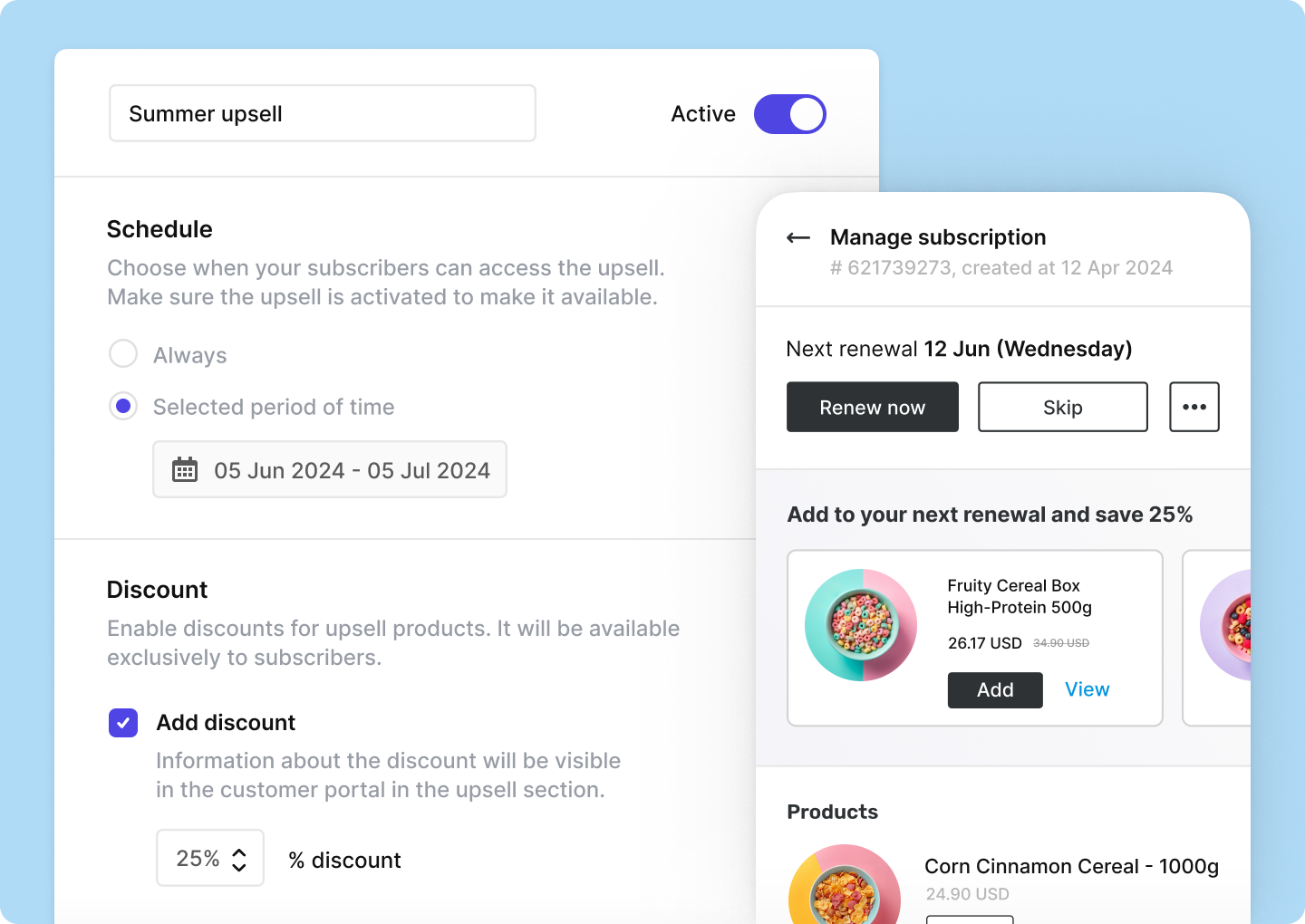
Juo Upsells let you enhance the subscription experience by offering exclusive, one-time
deals available only to your subscribers.
This guide will walk you through the steps to set up and manage Upsells in the Juo Customer Portal.
## Create an Upsell
To create a new Upsell, navigate to **Experiences → Upsells → Add Upsell** and fill in the details:
1. **Campaign name**: Enter a name for your upsell campaign.
2. **Schedule**: Choose whether your upsell should be available always, or just during a specific time period. Set the start and end date for the upsell offer if you choose the latter.
3. **Discount**: Optionally, set a discount percentage. This discount will only be granted to the customers who purchase the product through Juo Upsells.
4. **Usage limit**: Decide if you want to limit the number of products your customers can add using Upsells.
5. **Customer eligibility**: Limit the offer to specific customer segments or customers subscribed to a specific product.
6. Click **Save** button for the other options to appear at the bottom of the page.
7. **Products**: Select which products you want to offer as part of the upsell.
8. Activate the Upsell by pressing the **Active** toggle at the top of the page.
Multiple Upsell offers with different settings can be used together.
## Customer experience
Your selected products will become visible in the Customer Portal as per the schedule.
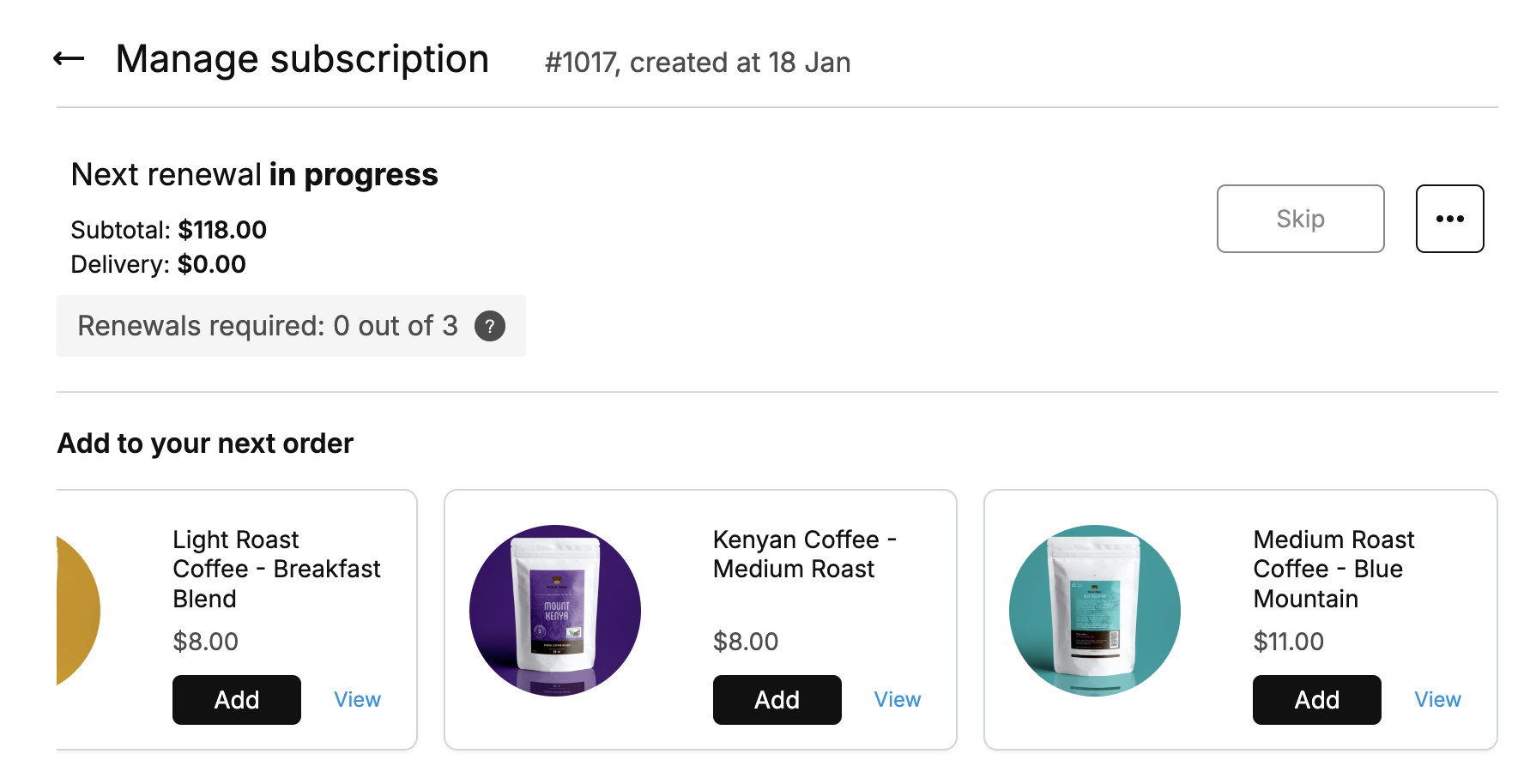
Customers who add Upsell products to their subscription will be charged upon the next renewal, and will receive them along with their scheduled subscription.