

This page helps you set up Juo’s built-in product page widget. If you’re working on a custom storefront, see Build a custom subscription storefront.
Before you start
- Install Juo.
- Create at least one subscription plan and add products to it. The widget only appears on products that belong to a plan.
- Use an Online Store 2.0 theme, such as Dawn or any theme that supports app blocks. If your theme doesn’t support app blocks, or you use a page builder, see Page builders and older themes.
Add the widget to product pages
1
Open the theme editor
In Shopify admin, go to Online Store → Themes. Next to your current theme, select Customize.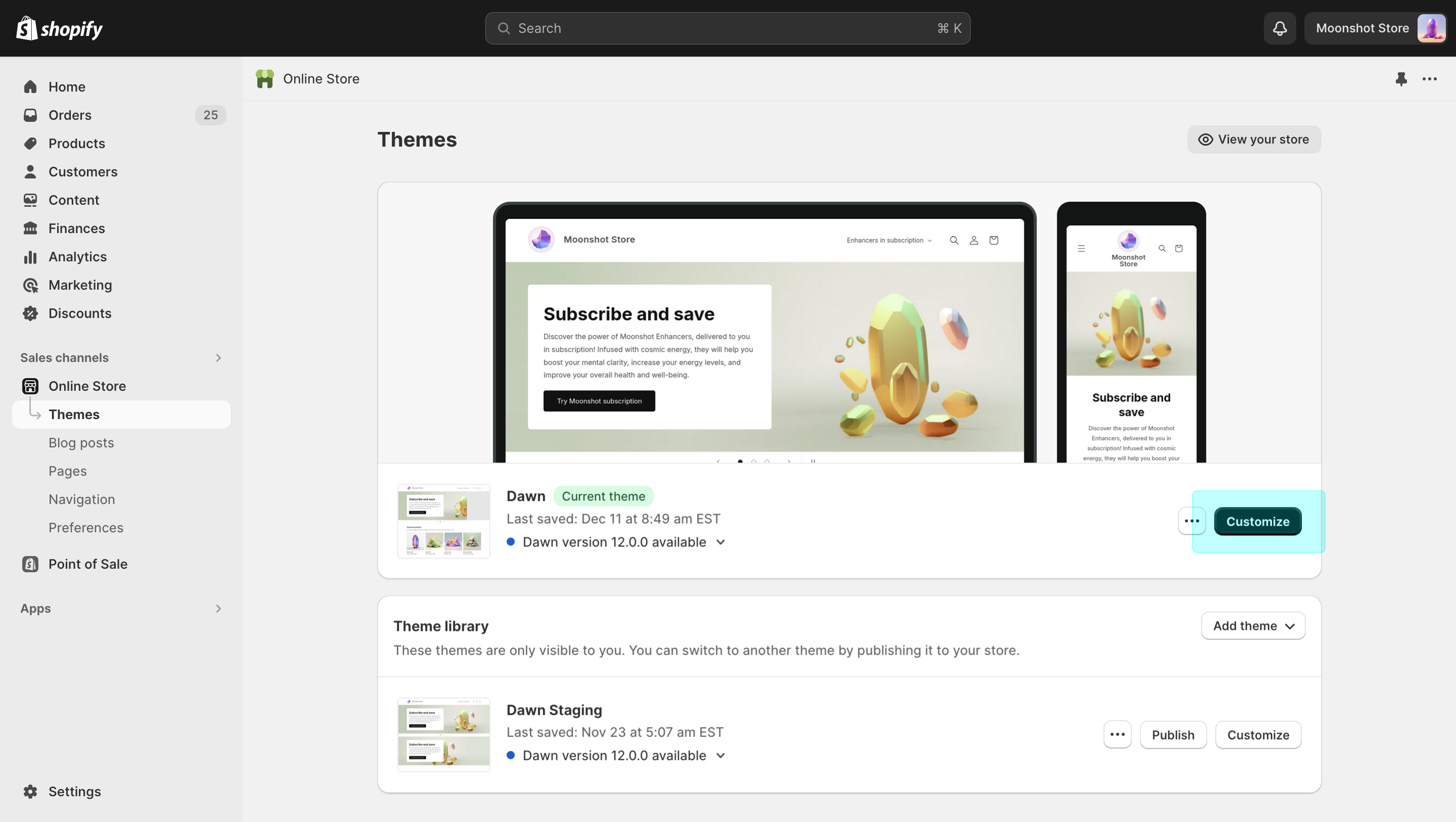
2
Open your product template
From the page selector at the top, choose Products → Default product. If you use more than one product template, repeat these steps for each template that shows subscription products.
3
Add the widget block
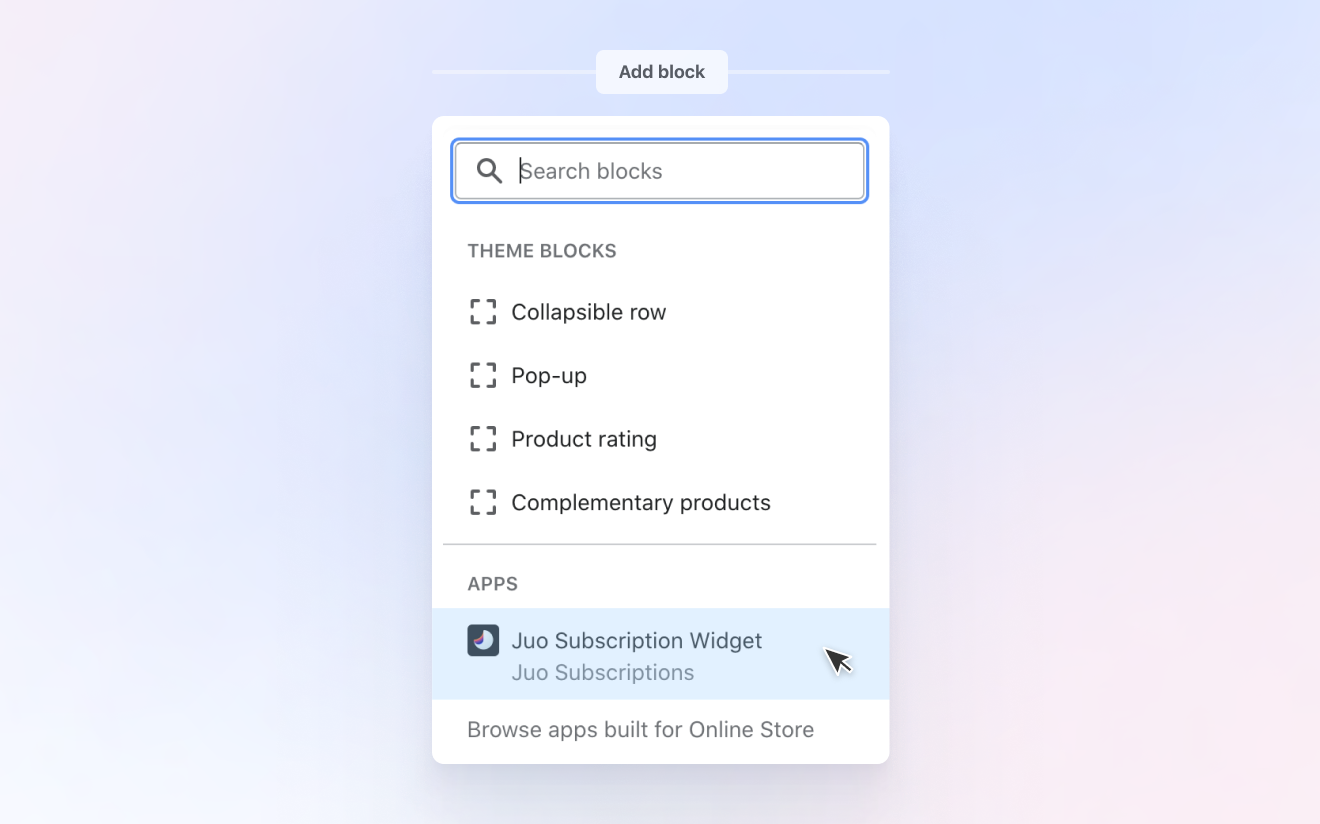
In the product information section, select Add block. Under Apps, choose the Juo subscription widget. Drag it directly above the Add to cart button.
4
Save and test
Select Save. Open a subscription product in your store, choose a subscription option and add it to the cart. The cart should show the delivery frequency next to the product.
If you offer subscriptions with local payment methods, such as iDEAL, Bancontact or BLIK, keep Juo’s app embeds turned on under Theme settings → App embeds.
Customize the widget
Select the widget block in the theme editor to change its style, colors, labels, badges and subscription benefits. See Customize widget for every setting. To translate the widget’s labels, use Shopify’s Translate & Adapt app. The widget’s texts appear there with your product template content.Add the widget to other pages
You can also show the widget outside product pages, for example on your homepage. Add a product section, such as Featured product, choose a product and add the Juo subscription widget block to that section. The widget picks up the product from the section. Some themes handle this differently.Page builders and older themes
- Zipify Pages: follow the Zipify integration guide.
- Other page builders or themes without app blocks: contact support@juo.io and we’ll help you add the widget.
- Fully custom product pages or headless stores: see Build a custom subscription storefront.
Extend the widget with code
Developers can react to the widget from theme code without changing the widget itself. The widget exposes hooks onwindow.juoSubscriptionWidget.hooks:
Troubleshooting
The widget doesn't appear on a product page
The widget doesn't appear on a product page
Check that the product is in an active subscription plan and that you added the block to the template this product uses. Products can use a different template than Default product.
The widget doesn't update when I switch variants
The widget doesn't update when I switch variants
Some themes change the selected variant without a standard change event. Ask your developer to call
window.juoSubscriptionWidget.refresh() after the theme switches variants.Local payment methods don't show at checkout
Local payment methods don't show at checkout
Buy it now and express checkout buttons skip the cart, where Juo routes subscriptions to local payment methods. Hide these buttons on subscription products and check that Juo’s app embeds are turned on.
Old or imported plans show in the widget
Old or imported plans show in the widget
Remove those products from the plan in Juo, or hide the plans with the
filterSellingPlans hook.