

Create the parent product
The box needs a virtual parent product in Shopify that acts as a container for the products customers add.- In Shopify, create a new product, for example “Build your box”.
- Uncheck Track quantity and This product requires shipping.
- Save the product.
Set up the box in Juo
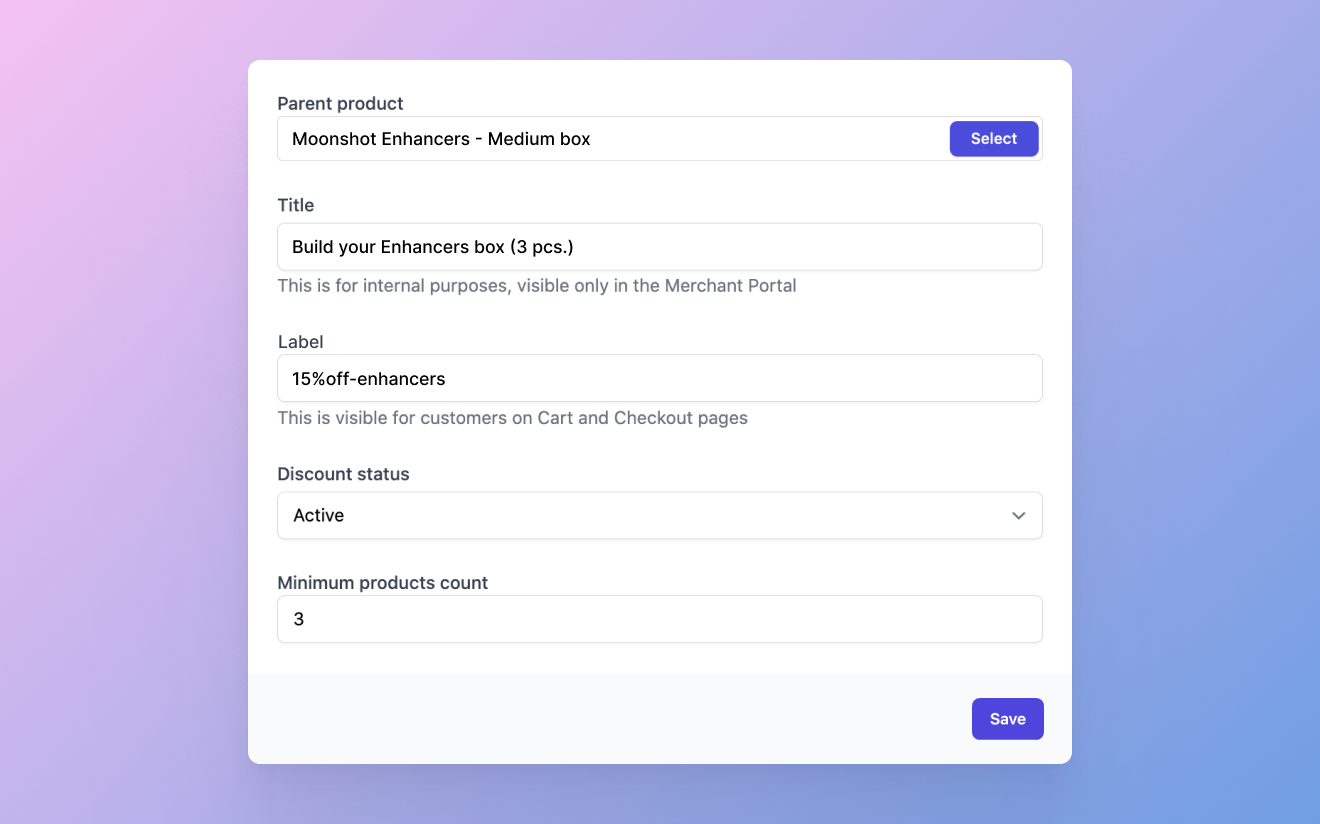
- In Juo, go to Offers → Build-a-box and select Add Build-a-box.
- Select the parent product you created.
- Optionally, give the box a Title. Only you see it.
- In Discount code, enter the code customers see at checkout.
- Set Discount status to Active to enable quantity discounts.
- In Discount type, choose Percentage or Fixed amount.
- In Tiers threshold type, choose whether tiers unlock by the number of products or by the total cart value.
- Set the minimum number of products needed to unlock a discount.
- Decide whether the box discount can combine with other discounts in the same order.
- Under Restrict quantity to match available tiers, decide whether customers can only check out with quantities that match a tier.
- Select Add to create the box, then select Edit on the box to finish the setup.
Add discount tiers
Add tiers so the discount grows as customers add more products. Base the number of tiers and their thresholds on how much your customers usually buy, and adjust them over time to raise average order value.Choose boxable products
Select the products customers can add to the box. You can add as many as you want. Put the same products in a Shopify collection too: the storefront uses it to display the box.Add free products
To include specific free products in every box, add them under Free products. They work as an extra reason to buy the box.Let customers subscribe to the box
- Go to Offers → Subscribe and save and add a plan, or edit an existing one.
- Add every product available in the box and select Save.
Next steps
Build-a-box on your storefront
Show the box with Juo’s ready-made block or your own design.
Discounts
How the box discount combines with Shopify discount codes.