

Editor layout
Sidebar tabs
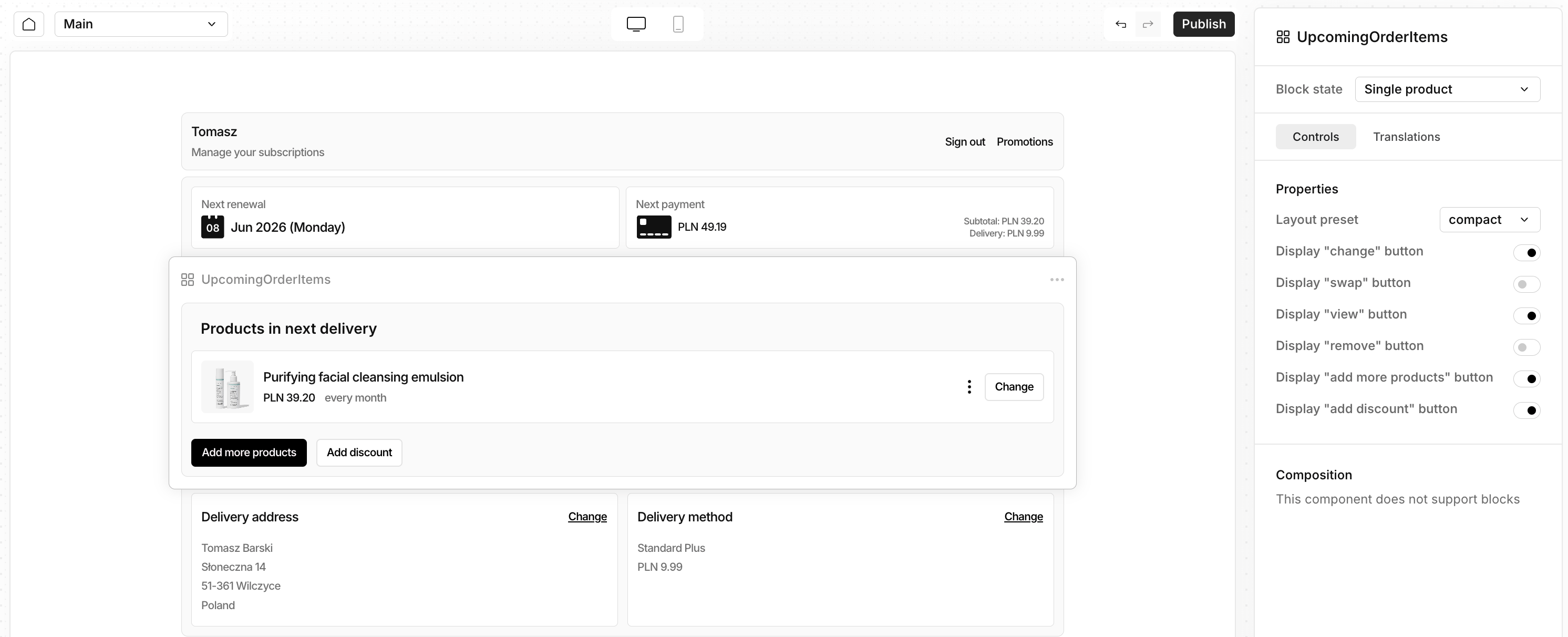
When you select a block (or the page root), the sidebar offers up to three tabs:- Controls — Settings for that block: toggles, dropdowns, colors, and layout options.
- Styles — Global theme for the portal (available on the main page root): density, surface style, corner shapes, and colors.
- Translations — Override text for the current language at theme level or for the selected block.
Working with blocks
- Select — Click a block in the preview.
- Add — Use Add block on the page. Blocks are grouped as Juo Blocks (built-in), My blocks (your published custom blocks), and Integrations (partner blocks), when available.
- Reorder — Drag blocks in the sidebar composition list.
- Remove — Delete a block from the composition panel.
- Undo / redo — Revert recent layout and style changes.
Pages
In the current version of the Editor, you can edit the Main Customer Portal view and the Login page view. You can also edit views created by Workflows.Built-in blocks
These are the standard blocks you can add, remove, and configure on the Main subscription page.Header
Top of the portal: greeting, subtitle, and navigation actions.- Edit greeting and subtitle inline
- Show or hide the customer name
- Choose menu layout: links or icon menu
- Reorder built-in actions (e.g. View orders, Log out) and add up to two custom links (label + URL)
Banner
A custom banner that can contain text, media, and applicable discount codes. Controls let you change presets, height, alignment, image placement, and CTA URL. For media banners you can set Media fill (Cover, Contain, Original, Fill width, Fill height) and Media alignment, with separate values for desktop and mobile when needed.Renewal summary
A flexible renewal hub with status labels, next payment/delivery callouts, price breakdown, and actions (skip, renew now, pause, and more).Upsell
Product recommendations carousel for add-ons, samples, and discounted items. Works with Upsells configured in Admin.Upcoming order items
Line items for the next scheduled order. Customers can change products and add a discount code.Customer subscriptions
Shows the customer’s other subscriptions when they have more than one.Payment method
Section designed to view or update the payment method on file.Delivery section
Shows shipping and delivery address details.Subscription history
Shows past orders and billing history for the subscription.Login
This block is dedicated for the Customer Portal login page. It allows you to customize the email sign-in flow and optional social providers. Many labels, buttons, and error messages support inline editing. Use presets to preview steps: email entry, code verification, validation errors, and social redirect.Discount
Discount-related UI. See discounts for setup details.Workflow action blocks
When you use Workflows for retention, cancellation saves, dunning, polls, and similar flows, each interactive step has a matching action block in the flow overlay.
Open a workflow in the builder and click Preview in Editor to customize how that step looks to subscribers.
Global styles
At the Main page root, the Styles tab controls the theme applied across all blocks:
Global styles are saved and published together with block layouts when you Publish.
Translations
The Translations tab lets you:- Switch locale (language) for editing
- Override theme-wide strings
- Override strings for the selected block only
Draft and publish
Publish is enabled when there are unsaved changes or unpublished drafts. Review the preview on desktop and mobile, and check data with preview customer, before publishing.
There is no partial publish per block—all draft changes go live together when you publish.
Tips
- Use preview customer to verify renewal dates, Upsells, and notification banners with real data.
- Use presets on blocks like Subscription notifications, Renewal summary v2, and Upsell to design for edge cases—not only the happy path.
- Block order matters for subscriber scanning: header → alerts → renewal → upsell → details. Remove blocks you do not need.
- Management options (what subscribers can do in the portal) are still configured in General settings—the Editor controls layout and presentation.
Custom blocks (for developers)
Merchants can extend the portal with custom blocks built by a development team or agency. Custom blocks appear in the Editor under My blocks after they are published to your shop.When to use custom blocks
- Brand-specific widgets (loyalty, calculators, third-party embeds)
- Unique layout or data not covered by built-in Juo blocks
- Elements injected from external integrations, grouped as Integrations
How it works
- A developer creates a block theme project (React or Preact components by default).
- Each block defines a name, merchant-editable settings (shown in the Controls tab), a renderer for the Customer Portal, and optional presets and locale files.
- The project is built and published to Juo’s block registry for your shop.
- The Customer Portal loads the registry alongside built-in blocks; the Editor discovers new blocks automatically.