

How to run a bulk action
- Go to Subscriptions.
- (Optional) Use search and filters to narrow the list.
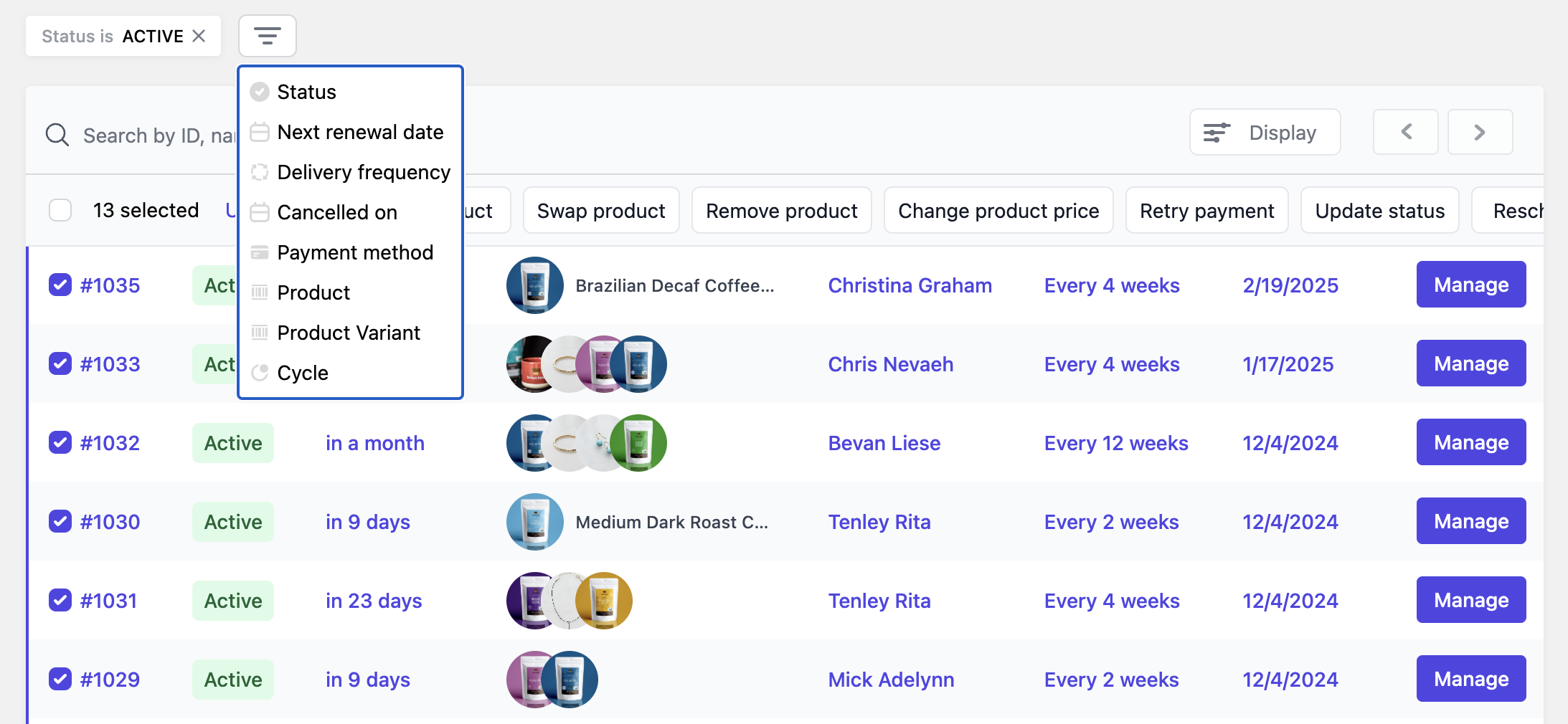
- Select subscriptions with the checkboxes, or use Select all to include every subscription that matches the current filters (across pages).
- Choose a bulk action from the bar above the table. Actions are grouped into the Products, Pricing, and Schedule menus; Retry payment, Update status, and Run workflow are separate buttons.
- Configure the action in the sidebar, then Confirm.
Available actions
Products
Pricing
Schedule
Payment, status, and workflows
Build-a-box items
Actions that target specific products leave items inside a Build-a-box unchanged. This applies to Swap product, Remove product, Change product price, Update subscription plan pricing, and to Reschedule and Add discount when you limit them to specific variants. The log shows how many box items were skipped on each subscription. To swap a product inside boxes, select Also swap items inside Build a Box in the Swap product sidebar. Juo rebuilds each box with the new product and recalculates its discount tier. Keep these limits in mind:- The new variant must be offered by the box. Boxes that do not offer it are skipped.
- Box items are priced by the box, so you cannot combine this option with Retain original price.
Update subscription plan pricing
This action does not change products that should keep their current price. It skips:- products with a manual price override
- one-time products
- Build-a-box items
- upsells, unless you select Include upsells
- products on plans that were deleted in Shopify
- Convert currency: converts plan prices set in another currency using your checkout exchange rates. When this is off, subscriptions in another currency are skipped.
- Include upsells: also updates products added as an upsell. When this is off, upsells keep the price they were sold at.
On a customer’s page
From a customer’s detail page you can also bulk-edit that customer’s subscriptions or product lines:- Subscriptions: Add discount, Change status, Change frequency
- Products: Change frequency, Reschedule