

Step 1. Add Buy Box Section in Zipify
- On product page templates in Zipify, add Buy Box Section. It will allow to integrate with Juo.
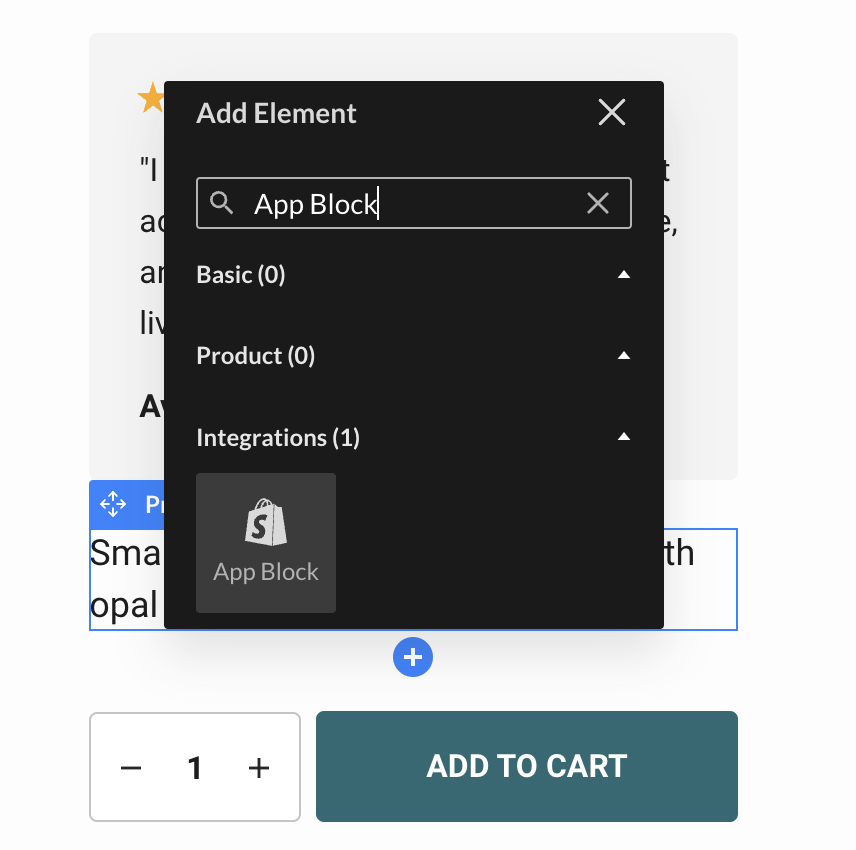
- In the Buy Box Section click the blue “+” button in the place where you want the subscription widget to be added. Then, in the Add Element modal, search for “App Block”. Select it and click Update to save changes.
 Learn more on Zipify:
Step 2. Add Juo widget to Shopify template
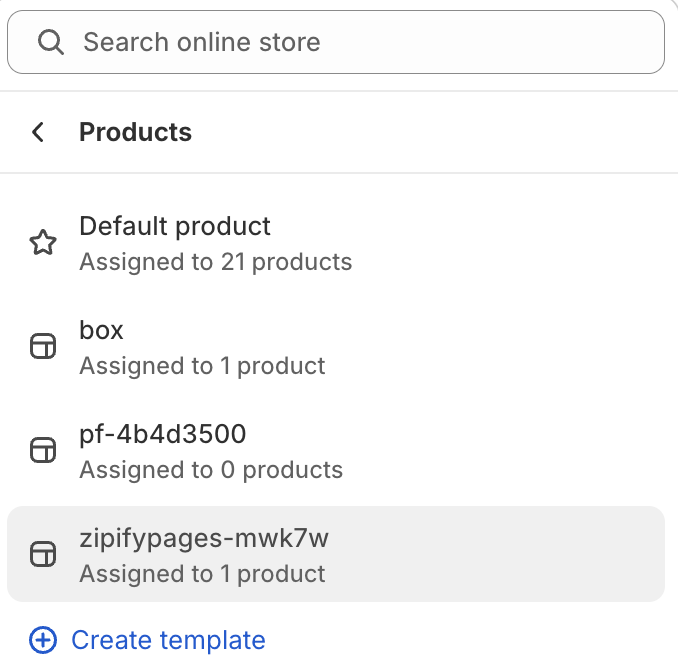
- In Shopify panel, go to Online Store > Themes > Customize. In the Theme Editor find a product page template created by Zipify and select it.
- In the structure section on the left select Add block > Apps > Juo Subscription Widget